Getting started with TRIOPilot
What TRIOPilot is, how to sign in, and where to go for your role.
Welcome! TRIOPilot is the home for your TRIO program: student records, contacts, documents, and your Annual Performance Report (APR), all in one place. This short guide gets you oriented.
Signing In
TRIOPilot uses passwordless sign-in. There is no password to remember.
- Open your program's TRIOPilot address followed by
/login, or click the link in your invite email. If you try to open any page while signed out, TRIOPilot sends you to the sign-in page for you. - Enter your email address and choose Email me a sign-in code.
- Check your email for an 8-digit code and type it under Enter the code from the email. Each code works once and expires after 24 hours. There is no link to click: a code cannot be used up by your college's email security scanner the way a link could.
- You are in, and TRIOPilot takes you straight to the right place for your role.
If a code no longer works, choose Send a new code on the sign-in page and use the newest email. Use a different email takes you back a step.
Signing in never creates an account, only invited staff can get in. If TRIOPilot does not recognize your email, ask your program admin to invite you. See Add a user or advisor.
Who Sees What
You land in the right view automatically, based on the role your admin gave you:
- Advisors see every student in the program, log contacts, and run events.
- Admins do everything advisors do, plus set up the program, manage users, and run reports.
- Assistants work in the advisor view and can update student profiles, but by default they cannot log contacts, record events, send texts, or make bulk edits.
- Observers and guests are read-only. They can look, they cannot change anything. Observers can also open the admin dashboard and reports, read-only.
- Applicants never sign in. Students apply through your program's public application form, no account needed, and staff review what comes in.
You do not need to pick a portal. Your role decides where you go.
Finding Your Way Around
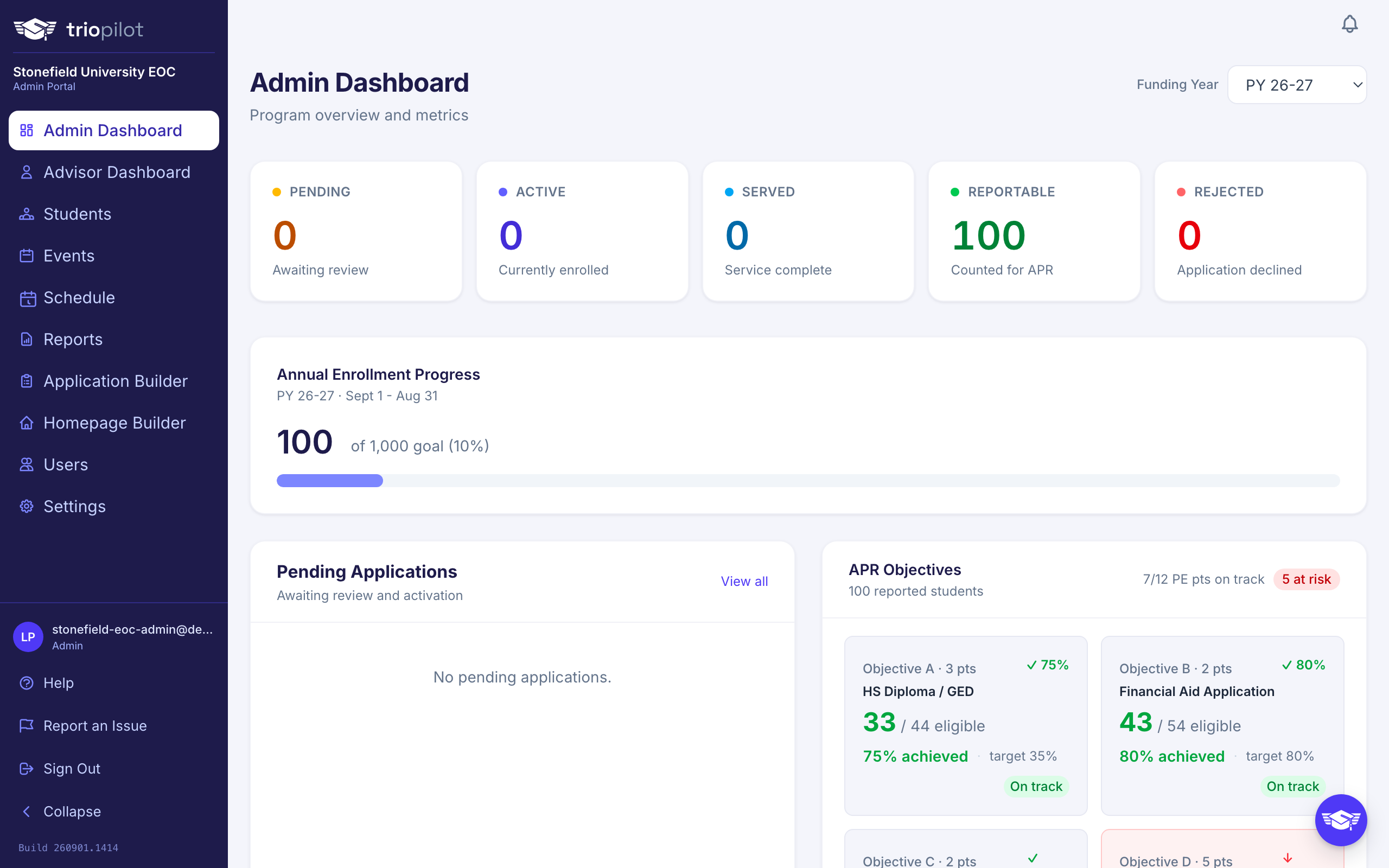
The sidebar is the same on every page, and the notification bell sits at the top.
- Advisors land on Dashboard, a work queue of applications waiting for review, students who need attention, and possible duplicates. The sidebar also holds Students and Events, plus Schedule when appointment scheduling is turned on. To log a contact, open a student's profile and choose Log Contact.
- Admins land on Admin Dashboard. Their sidebar adds Reports, Application Builder, Homepage Builder, Users, and Settings alongside the advisor pages.
Your program can rename some of this vocabulary, so Students, Events, and Contact may read differently in your sidebar.
Notifications
The bell shows a red badge when something new is waiting for you. You get a notification when a new application comes in, a student is assigned to you, someone comments on a student you are assigned to, or a student texts back. If your program uses appointment scheduling, you are also notified when an appointment with you is booked, moved, or cancelled. Click a notification to jump straight to the student or page it is about. Opening the list marks everything in it as read, and See all notifications at the bottom opens your full history.
Next Steps
- Advisors: read Log a contact and Understand student statuses.
- Admins: read Add a user or advisor and Build your application form.
Getting Help
Help lives right where you work: click any small ? icon next to a feature to open the matching article, or choose Help in the sidebar footer to browse the whole Help Center.
- Something broken or confusing? Choose Report an Issue in the sidebar. Just describe what you were trying to do; TRIOPilot attaches the technical details automatically. Please do not include any student information.
- Want the walkthrough again? Open Help and choose Restart the Tour to replay the guided walkthrough of your portal.
- Prefer email? Write to hello@triopilot.com and a real person will help.