Add a user or advisor
Invite staff, choose the right role, adjust permissions, and archive accounts when someone leaves.
As an admin, you bring your team into TRIOPilot by inviting them and assigning a role. Invites go out by email, and your colleague signs in passwordlessly. No password to set up.
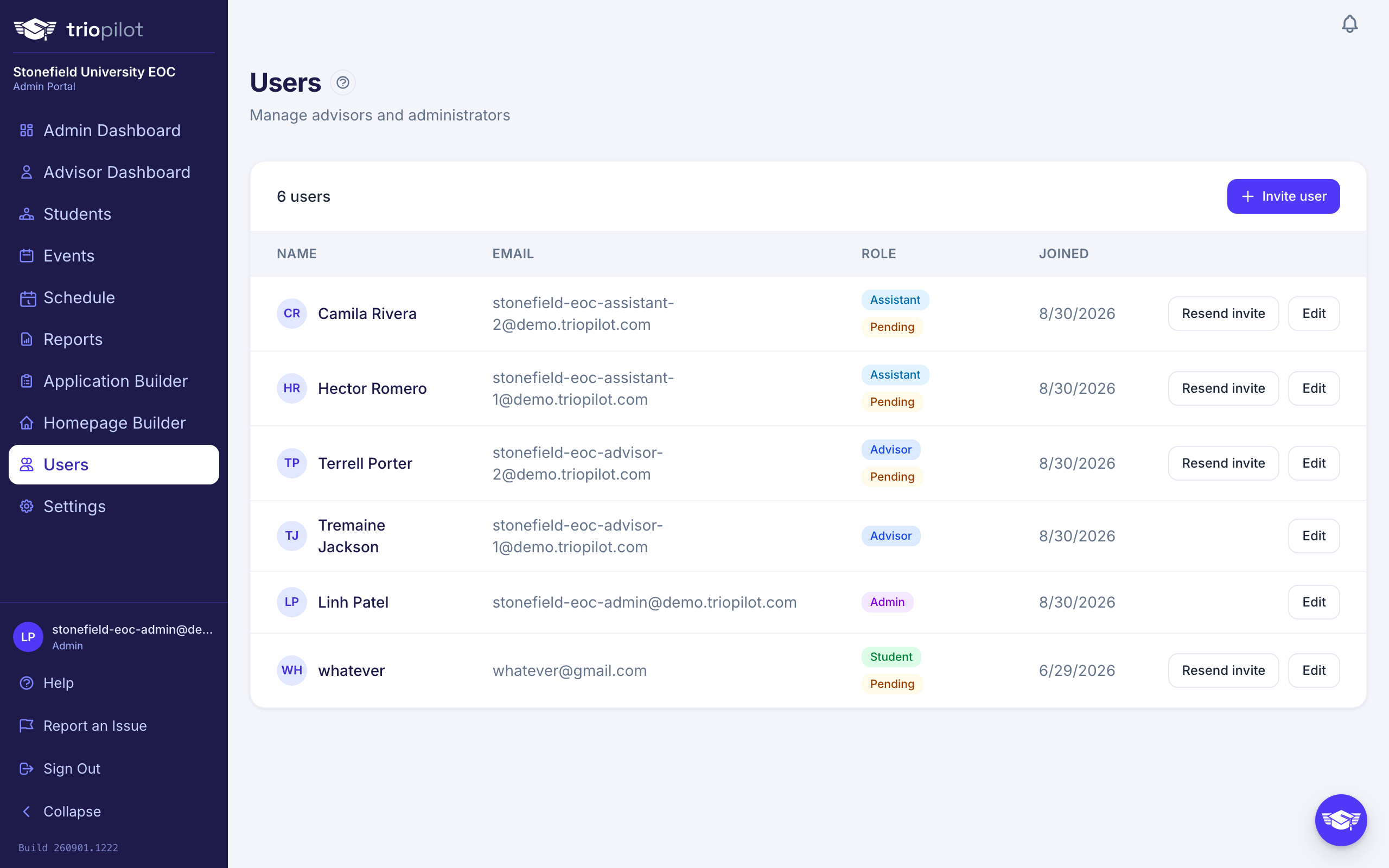
Invite someone
- Go to Users and choose Invite user.
- In the Invite a Team Member window, enter their Full name and Email address, then pick a Role.
- Choose Send invite. They'll get an email link that signs them in and lands them in the right portal.
Until they sign in for the first time, their row shows a Pending badge with a Resend invite button, handy when the first email gets lost.
Choosing a role
Pick the role that matches what the person actually does:
- Advisor: works with every student in your program: log contacts, create events, send texts, update profiles, and make bulk edits. Advisors can carry a personal caseload.
- Assistant: can view and update individual student profiles, but by default can't log contacts, create events, send texts, or make bulk edits. Assistants also never appear in the "assign advisor" list (assistants don't carry caseloads).
- Admin: everything an advisor can do, plus program setup, user management, and reporting.
- Observer: read-only. Sees what an advisor sees, plus the read-only admin dashboard and reports. Changes nothing.
- Guest: read-only advisor view. Sees students, changes nothing.
One power is admin-only unless you grant it: exporting the student roster to CSV. Deleting students is always admin-only and cannot be granted to any other role.
One principle worth knowing: staff see the whole program, not just their caseload. Advisors, assistants, and admins can read and update any student. The caseload is a workflow signal, "who's the primary advisor," not a wall.
Change What Each Role Can Do
The advisor and assistant descriptions above are defaults, and you can change most of them. Go to Settings, then the Team tab. You'll see a grid: one row per permission (Edit Students, Log Contacts, Bulk Edit, Export Students, Edit Own Contacts, Edit Any Contact, Access Admin Pages) and one column each for Assistant and Advisor. The two contact rows are separate on purpose: by default advisors can fix their own logged contacts and nobody but an admin can fix someone else's. If you renamed the advisor role under Settings, on the Program tab, that column shows your own term. Deleting students is not in the grid: it is always admin-only and cannot be granted to any other role.
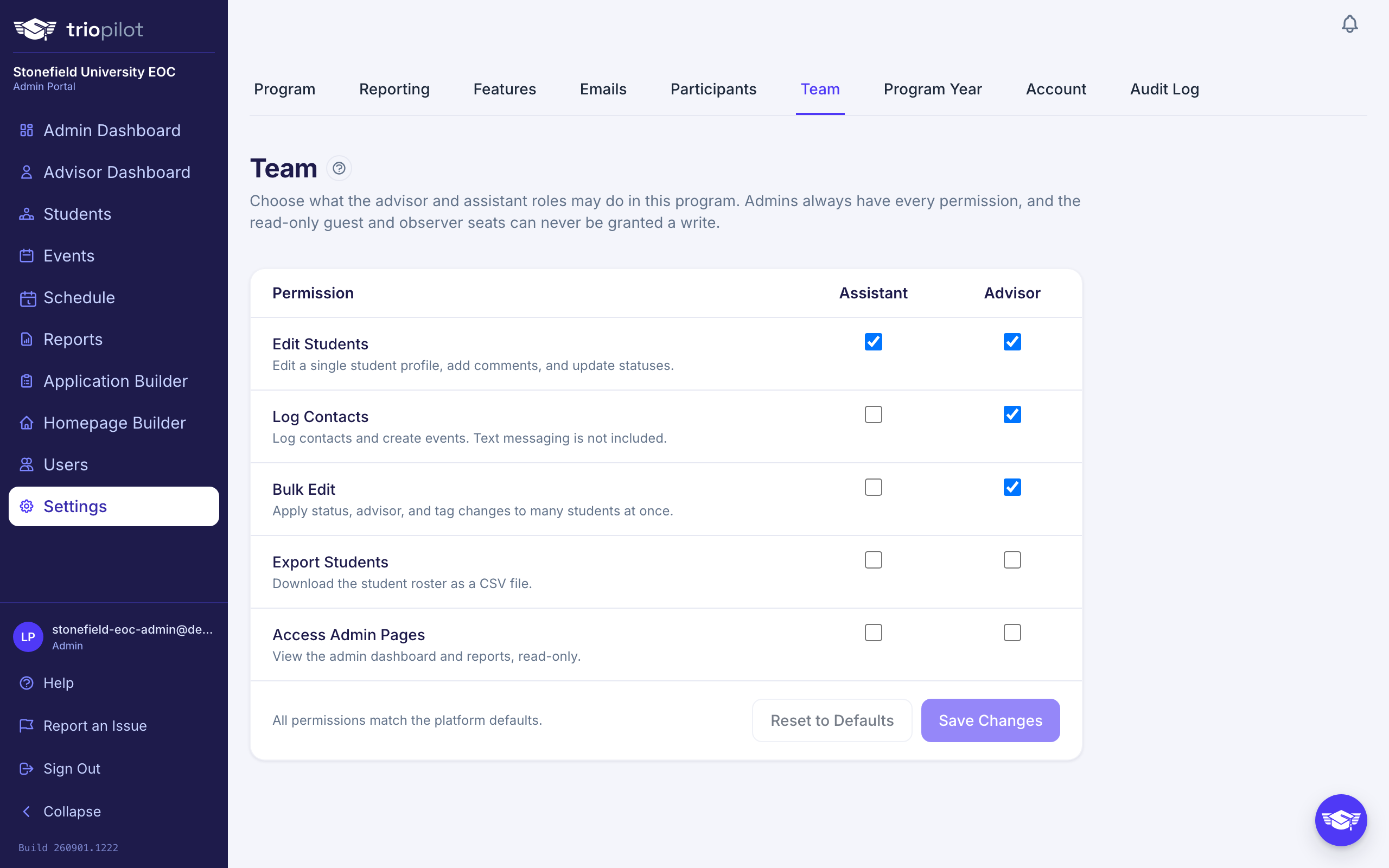
- Check or uncheck a box, then choose Save Changes. Changes apply the next time each user loads a page.
- A cell you've changed from the platform default shows a small amber Modified tag. Unmarked cells are at their defaults.
- Reset to Defaults puts every row back to the platform default. It becomes available once you have at least one override, and you still choose Save Changes to apply it.
Two limits to know before you plan around the grid. Admins always keep every permission, and the read-only observer and guest seats can never be granted write access; that's enforced at the database, not just hidden in the interface. And text messaging is not a row in the grid: sending a text stays with advisors and admins, so granting an assistant Log Contacts lets them log contacts and create events but still not text.
Update a user
From Users, choose Edit on any row to change a person's name, role, or email.
While editing, you can also set their profile photo: choose Upload photo (or Change photo if they already have one), pick any image, drag and zoom to position it, then choose Save photo. TRIOPilot crops and sizes it for you.
If you change someone's email address, they'll receive a confirmation email at the new address before the change takes effect, so make sure they can check that inbox.
When someone leaves
Don't change their role. Instead, archive them:
- On the Users page, choose Edit on their row.
- Choose Archive user, then choose Archive to confirm.
An archived person is turned away at the sign-in page and can't reach any part of TRIOPilot, while their history stays intact: every contact they logged and every edit they made remains attributed to them. If they ever return, open the Archived Users section at the bottom of the page and choose Restore.
See what your team is doing
Choose a staff member's name on the Users page to open their activity page: contacts logged, students served, profile edits, and a dated feed of their work.
To compare the whole team at once, go to Reports and open the Advisor Activity Report: contacts, students served, and caseload for each staff member over a period you choose, sortable and downloadable as a CSV. For a field-by-field history of changes to individual records, see See who changed what.