Edit your homepage
Build the public homepage visitors see at your program's web address.
Your program has its own public web address, like stonefield.triopilot.com. The homepage visitors see there is yours to build, block by block, with no web design skills needed.
Where Your Homepage Lives
Your homepage sits at your program's web address. It is the same link as your application form without the /student/application on the end, and the full application link is shown at the top of the Application Builder page if you need to check it.
Every visitor sees a top bar with your program's logo, or your program's name if you have not uploaded a logo on the Program tab in Settings, plus an Apply Now button that opens your application form. That bar is there no matter how you design the page. A short footer sits at the bottom.
You do not have to use the homepage at all. If it is turned off, visitors to your program's address go straight to the application form instead. More on that below.
Open the Homepage Builder
- In the admin sidebar, choose Homepage Builder.
- The first time you open it, a starter layout is already filled in: a welcome banner, a "What We Do" section, two eligibility cards, a services list, a "Start Your Application" button, and a contact section.
- Edit the starter text so it describes your program. It is placeholder copy, not something you have to keep.
The contact section is prefilled from the Project Information you entered on the Reporting tab in Settings. Details you have left blank are simply left off the page.
Work with Blocks
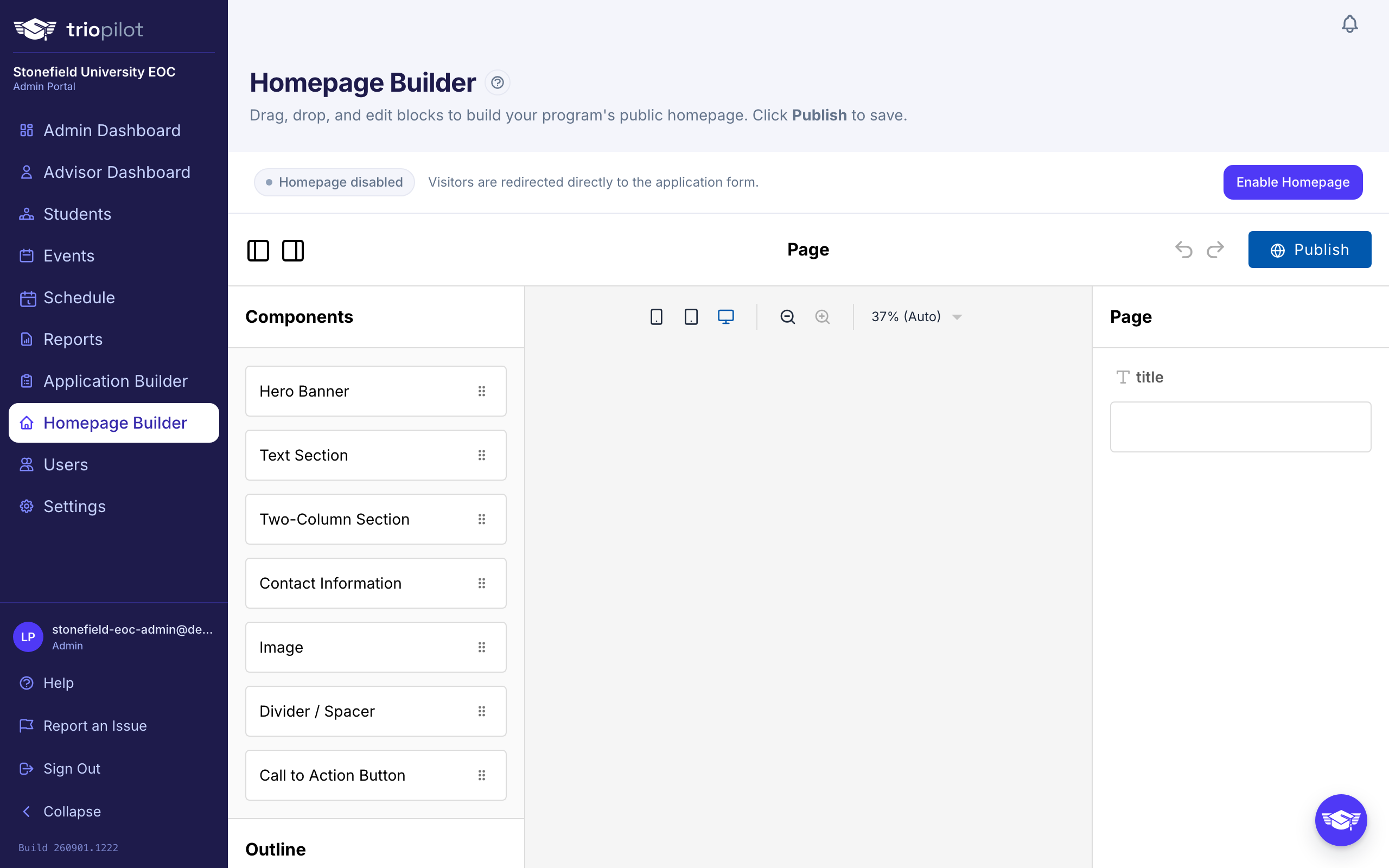
The page is made of stackable blocks. The Components list on the left offers Hero Banner, Text Section, Two-Column Section, Contact Information, Image, Divider / Spacer, and Call to Action Button.
- Add a block: drag it from the Components list onto the page, wherever you want it.
- Edit a block: click it on the page, then change its text, colors, and layout in the panel on the right.
- Reorder blocks: drag a block up or down on the page. The Outline list on the left is a quick way to find and select one.
- Duplicate or remove a block: select it, then use the copy or trash button on the small toolbar that appears.
- Add a picture: use the Image block, then either upload a file or paste an image URL.
- Undo a mistake: use the undo and redo arrows in the top bar. Ctrl+Z (Cmd+Z on Mac) also works, with Shift added to redo, as long as your cursor is not inside a text box.
Set Colors
Blocks that can be tinted have a Background Color field, and the Hero Banner and Call to Action Button also have a Button Color. Leave a color blank and the block uses the built-in default, a deep indigo.
The homepage does not follow the Color Scheme you pick on the Program tab in Settings. That scheme colors the staff portals only, so if you want your program's colors on the public page, set them block by block here.
Publish Your Changes
Nothing in the editor reaches the public until you choose Publish in the top bar. You will see "Homepage saved and published." and the live page updates right away.
There is no draft to manage and no autosave, so if you leave the page without publishing, your edits are lost. It also means the starter layout is not public until you publish it at least once.
Turn the Homepage On or Off
Above the editor, a status bar shows Homepage enabled or Homepage disabled, with a button to switch: Enable Homepage or Disable Homepage.
- Enabled: visitors to your program's web address see your homepage.
- Disabled: visitors are sent straight to the application form. Your homepage design is saved, just not shown.
New programs start disabled, so turning it on is a deliberate choice. The switch takes effect immediately and is separate from publishing. If you enable the homepage before you have ever published, visitors see a simple page with your program's name, a short "coming soon" note, and an Apply Now button.
Good to Know
- Apply Now is always one click away. The top bar button is always there, and the starter layout's banner and call to action button link to the application form too. Your homepage cannot hide the way in.
- The application form is separate. The homepage is your public storefront; the questions themselves are built in the Application Builder.