Log a contact
Record an advising interaction so it counts toward your APR.
Every time you help a student (FAFSA guidance, academic advising, a scholarship chat), log it as a contact. Contacts build the student's activity feed and drive the Served status your APR reports on, so logging consistently keeps your reporting honest and easy.
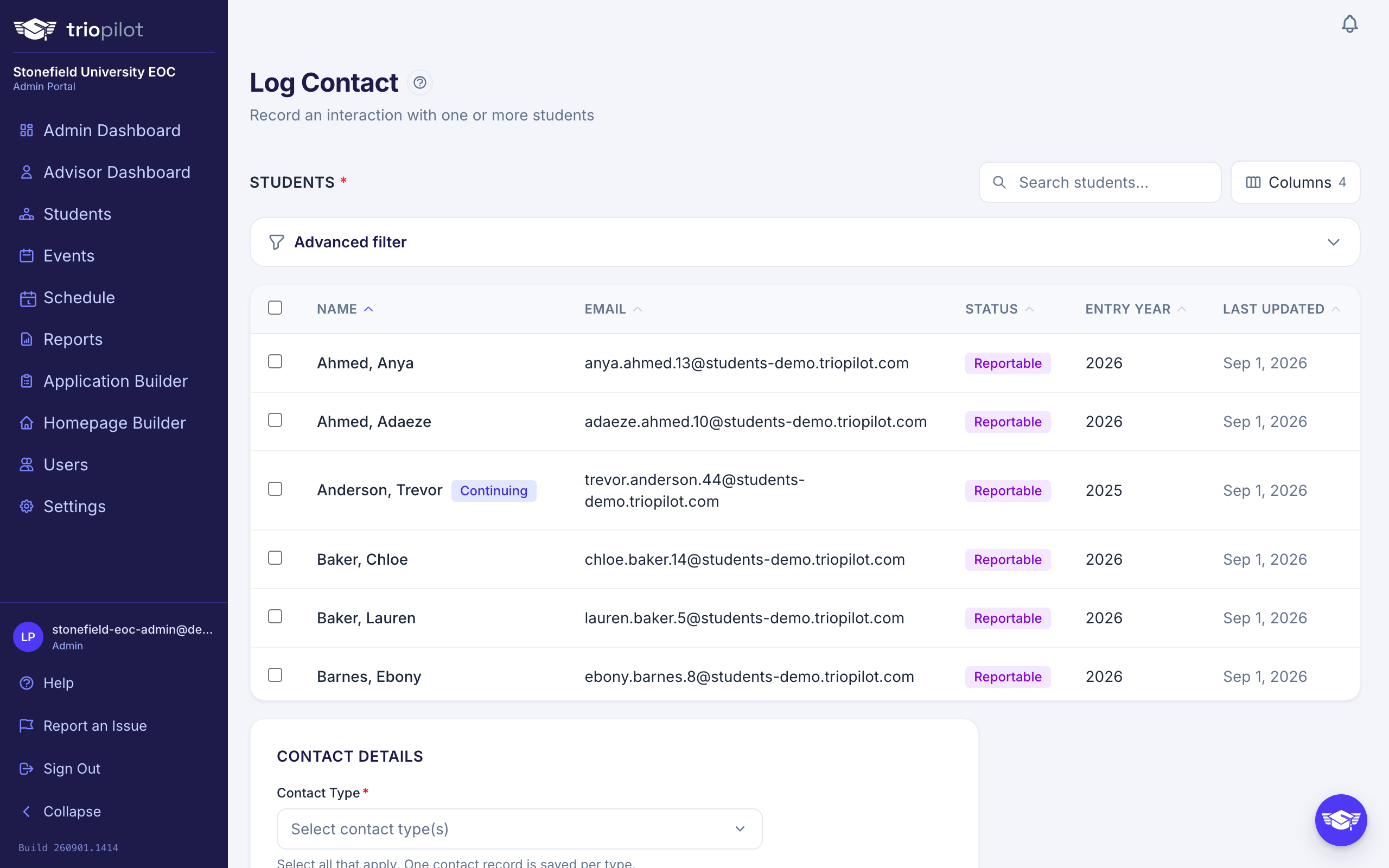
Log a contact in four steps
- Open the student's profile from the Students list, then choose Log Contact in the header. The form opens locked to that student, so you cannot log against the wrong record.
- Open the Contact Type dropdown and check every type that applies, for example FAFSA guidance or academic advising. At least one is required, and one contact record is saved per type you check.
- Confirm the Date of Contact. It defaults to today, so change it only when you are catching up on an earlier meeting.
- Pick a Modality (how the contact happened, for example in person or by phone), add your Notes, then choose Save Contact. Modality is required; notes are optional.
You land back on the student's profile, and the contact is already in their activity feed, stamped with your name, the type, the modality, and the time you logged it.
If the type or modality list is empty, the form tells you so instead of showing choices. That means nobody has set the lists up yet, so ask your admin.
Attach Files to a Contact
Got paperwork from the meeting, like a signed form or a FAFSA confirmation? Attach it to the contact.
- Find the Attachments area at the bottom of the Contact Details card.
- Choose Attach files and pick one or more files.
- If a file is evidence of an APR outcome, set Supports outcome on it. This is optional, and it does more than label the file: it marks that outcome Yes on the student's record for the current program year. Only set it when the file really is the proof.
- Save the contact. The files upload with it.
Attached files are saved to the student's documents and are listed under the contact in the activity feed, so the paperwork lives right next to the interaction it belongs to. See Upload and download documents for the other ways to add files to a student's record.
No Attachments area on the form? Your role can log contacts but cannot edit student records, which is what uploading a file requires. Ask your admin.
Good to know
- Types and modalities are your program's, not ours. Your admin manages both lists in Settings, on the Participants tab. If one you need is missing, ask them.
- The date drives your reporting. A contact counts in the program year that contains its date, so backdating moves it into that year's totals.
- Logging contacts can move a student to Served. Two or more contacts in the current program year promote a pending or active student to Served. Since one record is saved per type, checking two types for a single meeting counts as two contacts. A contact dated in an earlier program year never changes this year's status. See Understand student statuses.
Fix a mistake
Logged the wrong type, picked the wrong modality, or typed the wrong date? Open the student's profile, find the contact in the Activity Feed, and click the small pencil at the right edge of its header. A dialog lets you change the type, modality, date, and notes; choose Save Changes and the entry updates in place, marked (edited). Every edit is kept in the audit log with who changed what, so the record stays honest.
Two rules to know. The date still drives the program year: moving a contact across September 1 moves it into the other year's totals, and a date moved into the current year can complete the two-contact rule that moves a student to Served (a date moved out never demotes anyone). And permissions apply: by default advisors can fix their own contacts and admins can fix anyone's. Your admin can change that on the Team tab under Settings, where Edit Own Contacts and Edit Any Contact are separate rows. Contacts imported from a previous system have no owner, so fixing one of those needs Edit Any Contact. Deleting a contact is not offered; ask your admin if a record should not exist at all.
Group sessions
Do not log a workshop one student at a time. Use Record an event instead: one event records who attended and logs a contact for every attendee, using the event's type, modality, date, and notes.