Update a student's record
Edit any field right on the profile, and make sure your edit lands in the right program year.
Everything about a student is edited right on their profile. There is no separate edit page: hover over a field, click the pencil, change the value, done. This article covers how the profile is laid out, how inline editing works and, just as important, which program year your edit lands in.
Find Your Way Around
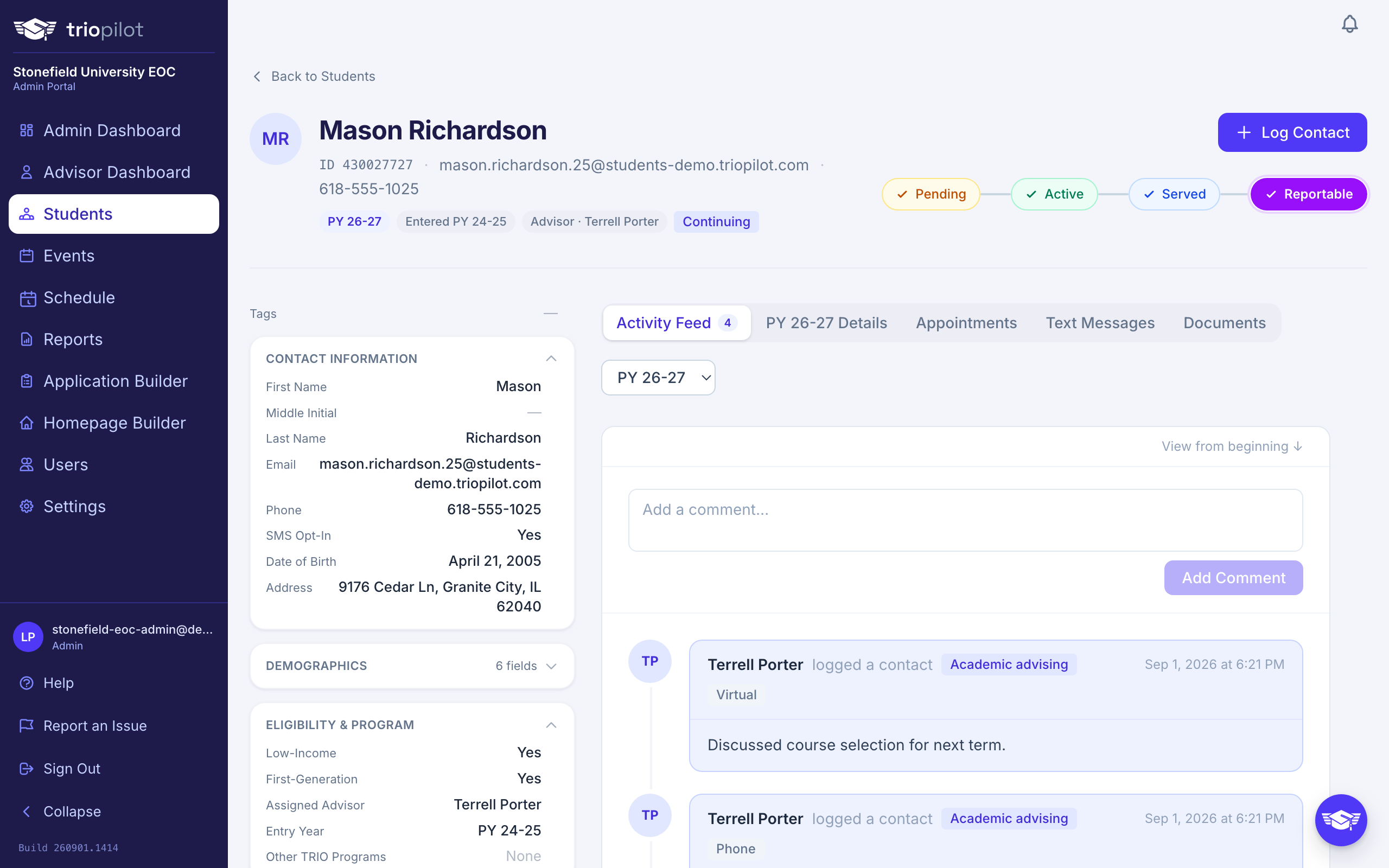
The profile has three parts:
- The header shows the student's name with their essentials on one line: participant ID, email, and phone. Under that sits a quiet row of chips: their program year, the year they entered, their assigned advisor, and how many documents are on file. Anything that needs your attention, like a possible duplicate or a missing APR item, appears in that same row. On the right are the + Log Contact button and, under it, the status stepper. When the student has no record in the current program year, a ... menu appears next to Log Contact with Add to the current year, which enrolls them so they appear on the current year's roster.
- The reference cards on the left hold the information that stays with the student across years: contact information, demographics, eligibility. Tags is pinned above them. The rarely used groups start collapsed to a single header line: click a header to open or close it, and the profile remembers your choice on that computer.
- The tabs hold the day-to-day work. Activity Feed opens first and shows the feed. The PY Details tab, named for the selected program year (for example "PY 25-26 Details"), holds that year's fields. Documents holds the student's files, and the document-count chip in the header jumps straight there. Programs with scheduling turned on also get an Appointments tab, and when texting is on, advisors and admins get a Text Messages tab with the student's recent conversation and a composer right there. A count on a tab tells you there is something inside, and a text-message notification opens the profile on the Text Messages tab.
The Program Year picker sits to the right of the tabs. It controls which year the Details tab and the activity feed show, and the Details tab renames itself to match. The profile opens on the most recent year the student has a record in, so a student who has not been carried into the current year still opens on their real history rather than an empty year. Pick the current year from the picker, or use Add to the current year, when you mean to work in it.
Edit a Field on the Profile
- Open the student's profile from the Students page.
- Find the field: details that stay with the student live in the reference cards on the left, and year-scoped details live on the PY Details tab.
- Hover over the field you want to change and click the pencil icon that appears.
- Enter or pick the new value.
- Click the green check mark to save, or the X to cancel. When you are typing in a field, Enter saves and Escape cancels.
The change saves immediately. If a save fails, you'll see an error and the old value comes back, so nothing half-saves.
A few fields work a little differently:
- Address is edited as one piece, and it saves with Save and Cancel buttons instead of the check mark. Click the pencil and start typing: matching addresses appear, and picking one fills in the street, city, state, and ZIP for you.
- High School Attended suggests schools from your program's high school list as you type. Admins manage that list in Program settings.
- Institution Name, on programs that record postsecondary outcomes, suggests colleges from a national list, and it appears once Enrolled in Postsecondary is set to Yes. When TRIOPilot recognizes the college it fills in Institution Type for you and relabels that field Institution Type (auto).
Change Status from the Stepper
At the top right of the profile, under the Log Contact button, is a row of steps: Pending, Active, Served, Reportable. Click a step to move the student there. The stepper updates the moment you click and shows a small spinner while the change saves; the steps stay locked until it lands, so clicking twice cannot record the change twice. Two things to know:
- The stepper always writes the student's latest program year (normally the current one), no matter which year the Program Year picker beside the tabs is showing.
- You cannot set Active until an advisor is assigned. If nobody is assigned yet, advisors, assistants, and admins get an Assign to Me button under the stepper that assigns the student to themselves. To assign someone else, use the pencil on the Assigned Advisor field in the reference cards. A student may also arrive already assigned: if your application form asks applicants to choose an advisor (an admin links that question's options to staff in the Application Builder, see Build your application form), their choice is applied when the application is submitted and shows on the profile's activity feed.
A student marked Rejected sits off the stepper. Click any step to move them back into the flow. For what each status means, see Understand student statuses.
Know Which Program Year You Are Editing
A student's record has two kinds of fields:
- Persistent fields stay with the student across years: name, contact info, address, demographics. They live in the reference cards on the left, and an edit applies everywhere.
- Program-year fields are tracked separately for each year: status, outcomes, and any fields your admin scoped per year. They live in the cards on the PY Details tab.
The Program Year picker to the right of the tabs controls which year you are viewing, and edits to program-year fields land in the year shown. Admins decide which fields fall on each side in Customize student profiles.
"My edit disappeared." It almost never did. If you changed a field on the Details tab while the picker was set to a past year, the edit saved to that year. Switch the picker back and you'll find it there. Before updating the current year, check that the picker shows the current year.
The Activity Feed
The feed fills the Activity Feed tab and shows contacts, profile edits, comments and, when your program uses scheduling, appointments for the selected program year, newest first. A field change becomes a feed entry showing who changed it, when, and the old and new values, so the record's history is never a mystery. One wrinkle: the feed entry for an edit is filed under the program year you made it in, even when the value you changed belongs to a past year.
Admins can see the full trail across all students in See who changed what.
Comments vs Contacts
The box at the top of the Activity Feed tab adds a comment: a quick note for your teammates, like "left a voicemail" or "prefers texts after 3pm". Type the note and choose Add Comment.
Comments are just notes. They never change a student's status and never count toward your APR numbers. A student becomes served through logged contacts, not comments, so when you actually helped the student, log a contact instead.
Good to Know
- Read-only accounts can look but not touch. Guests and observers see the full profile with no pencils, and an admin can also switch editing off for advisors and assistants. See Add a user.
- Every change is on the record. Successful edits land in the student's edit history and stay with the record for compliance, even if your admin has hidden edits from the feed display.
- Only admins can delete a student. The Delete button sits at the very bottom of the record, below everything else, and other roles never see it. If a student is removed by mistake, contact TRIOPilot support at hello@triopilot.com to restore the record.
Related: Find and filter students and Review possible duplicates.