Customize student profiles
Add custom fields, set rollover behavior, turn on federal APR fields, and arrange the profile layout.
Every program tracks something different, so student profiles in TRIOPilot are yours to shape. You can add your own fields, decide how each one behaves at year rollover, turn on the federal APR fields for your program, and arrange it all exactly how your staff likes to read it.
The Three Kinds of Field
Go to Settings, then the Participants tab, and find the Profile Fields section. It holds three groups, and they follow different rules:
- Your Fields, at the top. Anything your program tracks that TRIOPilot does not already collect. These are the only fields you can rename or remove.
- Federal APR Fields for your program, in the middle. The federal report defines these, so their names and answers are fixed. You choose which ones you collect.
- Built-in Fields, at the bottom. Every profile already has these. They cannot be renamed or removed, and the only decision is how each one carries into a new program year.
The last two open when you click them, and each says how many fields it holds, so nothing is ever hiding.
Add a Field of Your Own
- In the Your Fields group, choose Add Field.
- Enter a Name. This is what your staff sees on the profile. TRIOPilot keeps its own internal name for the field behind the scenes, which never changes and which you never have to think about, so renaming a field later is safe.
- Pick a Kind of answer: Short Text, Long Text, Number, Date, Yes or No, Choose One, or Choose Several. The last two need Choices, entered one per line.
- Optionally add Hint text, check Required field, and set How often it is answered (see below).
- Choose Add Field to save.
Two fields cannot share a name, so if you already have one called Intake Notes, TRIOPilot asks you for a different name rather than creating a second one.
If the field should feed your APR, pick a target under Feed this into your APR. For Choose One and Choose Several the form lists the values the APR accepts and warns you about any of your choices that will not reach it, so match them exactly.
Use Edit to change a field later, including its name. Delete asks you to choose Confirm Delete first, and it removes the field from every student profile, so anything already recorded in it stops appearing. If a change cannot be saved, the field says so instead of reporting success.
How Often a Field Is Answered
This one picker decides both where a value lives on the profile and what happens to it at rollover. Choose one of:
- One value, the same every year: a single value for the student, shown once in the reference cards beside the record. Best for identity and demographics.
- A value each year, carried forward from last year: a separate value each program year, copied from last year at rollover. Good for things that usually stay the same.
- A value each year, starting blank: cleared at rollover, so each year starts blank. Good for things you re-collect every year.
- A number each year, going up by 1: a number that increases by 1 each new year, like a grade level.
Your own fields get all four choices. Open Built-in Fields and each row offers only the choices that are true for that field, so you are never given an option TRIOPilot would refuse to save:
- Most built-in per-year fields, such as status, the education fields, and the end-of-year outcomes, live only in the program year. Those rows offer the two per-year choices, and there is no one-value option to pick.
- A few, such as Low-Income, First-Generation, Assigned Advisor, and Other TRIO Programs, can go either way, so those rows also offer One value, the same every year.
- A number each year, going up by 1 appears only on the fields TRIOPilot counts. Age at First Service is the one you will see it on.
- The remaining built-in fields, such as name, address, and race, always keep one value for the whole record. They have no picker at all and are named in a sentence at the bottom of that group, so you can confirm none is missing.
The group heading tells you both numbers: how many fields it holds in total, and how many of them let you make this choice.
One caution the page repeats: on a field that offers both, once it holds answers it can no longer move between one value and a value each year, because the answers already recorded would be stranded. You can still switch between the per-year behaviors at any time.
To see rollover in action, read Roll students into a new program year.
Turn On Federal APR Fields
Open Federal APR Fields for your program. The heading shows how many are in use out of how many exist for your program type, and if you have turned on any field from another TRIO program it counts those too, so nothing you switched on can go unreported.
Tick a field to collect it. It then appears on student profiles and, for most fields, becomes available as a Maps to target in the Application Builder. Fields your staff observe rather than ask about, such as end-of-year outcomes, are deliberately kept off the public form.
A few things the page enforces:
- A field your program is required to report is marked Always on, its tickbox is disabled, and the row says which program requires it.
- Turning off a field that already holds student answers is refused, and the reason appears under that field. Clear the responses first.
- Choose Show fields from other TRIO programs if you want to track something outside your program's standard list. That button says how many such fields exist and, once you have turned any on, how many are in use.
Arrange the Profile Layout
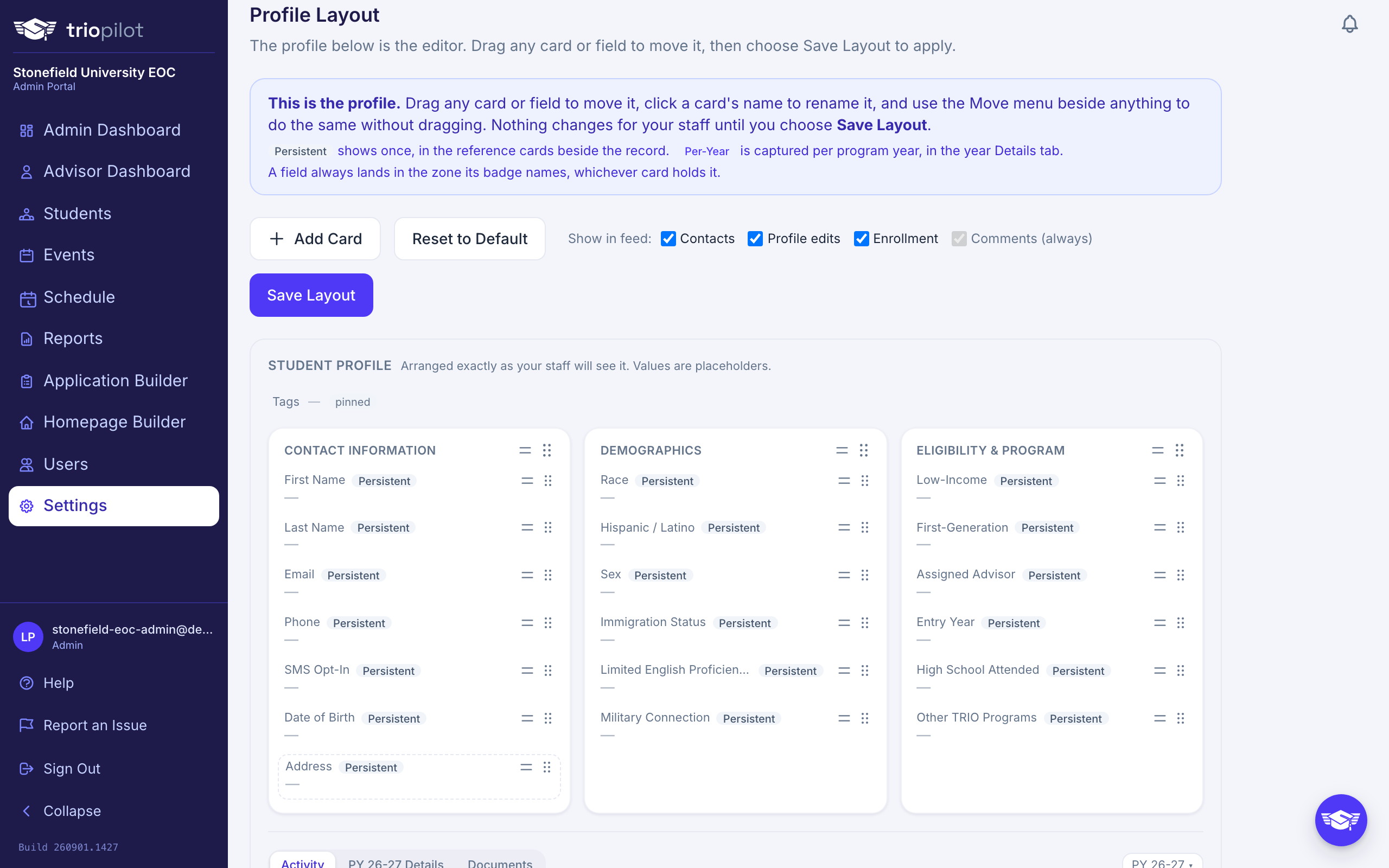
Go to Settings, then the Participants tab, and find the Profile Layout section.
There is no separate list to edit and preview to check. What you see is the profile itself, arranged as your staff will see it, with placeholder values instead of a real student. You rearrange it by moving the profile around. A small tab band in the middle of the surface mirrors the profile's tabs and tells you which tab each zone fills: the per-year cards fill the PY xx-xx Details tab, and the activity stream fills the Activity Feed tab.
- Drag any card to move it, and drag any field from one card to another or up and down within a card.
- Click a card's name to rename it. Add Card creates a new one, empty and ready to receive fields.
- Every card and every field also has a Move button beside it. It does the same moves with plain menu choices: move up, move down, move to a named card, or take the field off the profile. Use it when dragging is awkward, and use it if you work by keyboard. You can also press space on a drag handle, move with the arrow keys, and press space again to drop, or escape to cancel.
- Not on the profile, underneath, holds the built-in fields nobody has placed. Drag one onto a card to start collecting it, or drag a field down there to take it off. Fields you created yourself always appear somewhere, so they never land here.
- Each field shows a Persistent or Per-Year badge, and that badge decides where the field appears on the profile, whichever card holds it: persistent fields render in the reference cards beside the record, and per-year fields render in the cards on the PY xx-xx Details tab, which is named for the program year an advisor is viewing. The editor draws the same split, with persistent cards in the band at the top and per-year cards below the tab band, so a per-year field you drop into a card in the top band still shows below, under that card's name.
- Show in feed controls whether contacts, profile edits, and enrollment events appear in the profile's Activity Feed tab. Comments always appear. The feed itself has a fixed home, the Activity Feed tab, so there is no position to choose.
Some fields are shown as one block because that is how the profile draws them. The five address parts are one Address field. The end-of-year outcomes are one APR Outcomes group, and TRIOPilot hides the ones that do not apply to a student's education status. If your program type is not EOC, those outcome fields are not offered at all, because your program captures outcomes in its own Program Outcomes panel instead. A block like this moves as one thing, since half a group is not something a profile can show.
A card with nothing in it says so and does not appear on student profiles. It stays visible here so you can drop fields into it.
Nothing you drag or rename applies until you choose Save Layout. An "Unsaved changes" note sits beside the button until you do, and TRIOPilot asks before you navigate away with changes pending.
Reset to Default is the one thing that does not wait. It restores the standard arrangement and saves right away, so it asks you to confirm first, and the arrangement you had cannot be brought back.
Two more things to know: a built-in field you leave in Not on the profile does not appear on profiles at all. Custom fields always appear even when you do not place them: at-risk and academic-need fields snap into the At-Risk Factors card, and everything else snaps into the Additional Information card, so removing a field from a card moves it there rather than hiding it. On the student profile these cards stack in a narrow column on the left, and the Demographics, At-Risk Factors, and Additional Information groups start collapsed to a single header line: click a header to open or close it, and the profile remembers your choice on that computer. Tags is pinned at the top of the reference cards and is not configurable here.
Related
If a Federal Field Seems to Be Missing
If a federal field shows as in use in the list but never appears on student profiles, choose Repair missing fields under the federal fields list. TRIOPilot re-creates anything that failed to set up, and adopts any federal fields added since your program was created. Nothing you have set up is changed or removed, and running it when nothing is wrong does nothing.