Run your APR
Set up your APR configuration, generate the report, and export what you file.
The Annual Performance Report (APR) is the report you submit to the U.S. Department of Education each year. TRIOPilot builds it from the data you have been entering all along: demographics, eligibility, and outcomes. There is no separate spreadsheet to maintain.
Set Up Your APR Configuration First
The report reads a few grant-level numbers from the Reporting tab in Settings. Enter them once and the report handles the math.
- Go to Settings, open the Reporting tab, and find the APR Report Configuration card.
- Enter your Number Funded to Serve: the number of participants your project is funded to serve, from your approved grant award. This is separate from your Annual Enrollment Goal, which is your own internal target. The funded number, your objective targets, and the EOC enrollment option are saved per program year under Grant Numbers by Program Year: pick the year, enter that year's numbers, and every report for that year uses them. A year you never fill in inherits the most recent earlier numbers, so past reports keep computing against the targets that were true then, even after your grant changes.
- Enter your Annual Performance Targets (%): the approved rate for each objective in your grant application.
- Choose Save APR Config.
Some settings on that card appear only for certain programs:
- EOC: the PSE Enrollment Objective (Section IV.D) option. It is fixed in your approved grant application for the full grant cycle. Changing it mid-year changes the Objective D rate on every report and export, so set it once to match your application.
- UB and UBMS: State Assessment Cut Scores for Reading/Language Arts and Math. Once a cut score is entered, recording a student's raw score fills in the proficiency determination automatically. Staff can still override it, and a student already marked proficient is never downgraded.
- SSS: Institution Type (2-year or 4-year), which decides the code set the Persistence objective uses.
Two things follow from this setup:
- No target, no verdict. The report judges an objective only against a target you entered. Until you enter one, the Target column reads "Not set" or shows a dash, the rate is left uncolored, and no Met or Not Met status appears. Outside EOC, a Set target link sits in the Status column to take you straight to Settings.
- The 90% rule. If you serve fewer than 90% of your Number Funded to Serve, federal rules hold back your Prior Experience points for the year. The report shows a plain banner when that happens, for every program. SSS and VUB also use the funded number inside their objective denominators, so leaving it blank distorts those rates.
One more pointer: the Project Information card on the same Reporting tab (PR/Award Number, project director details, project period) populates Section I of the report.
Generate the Report
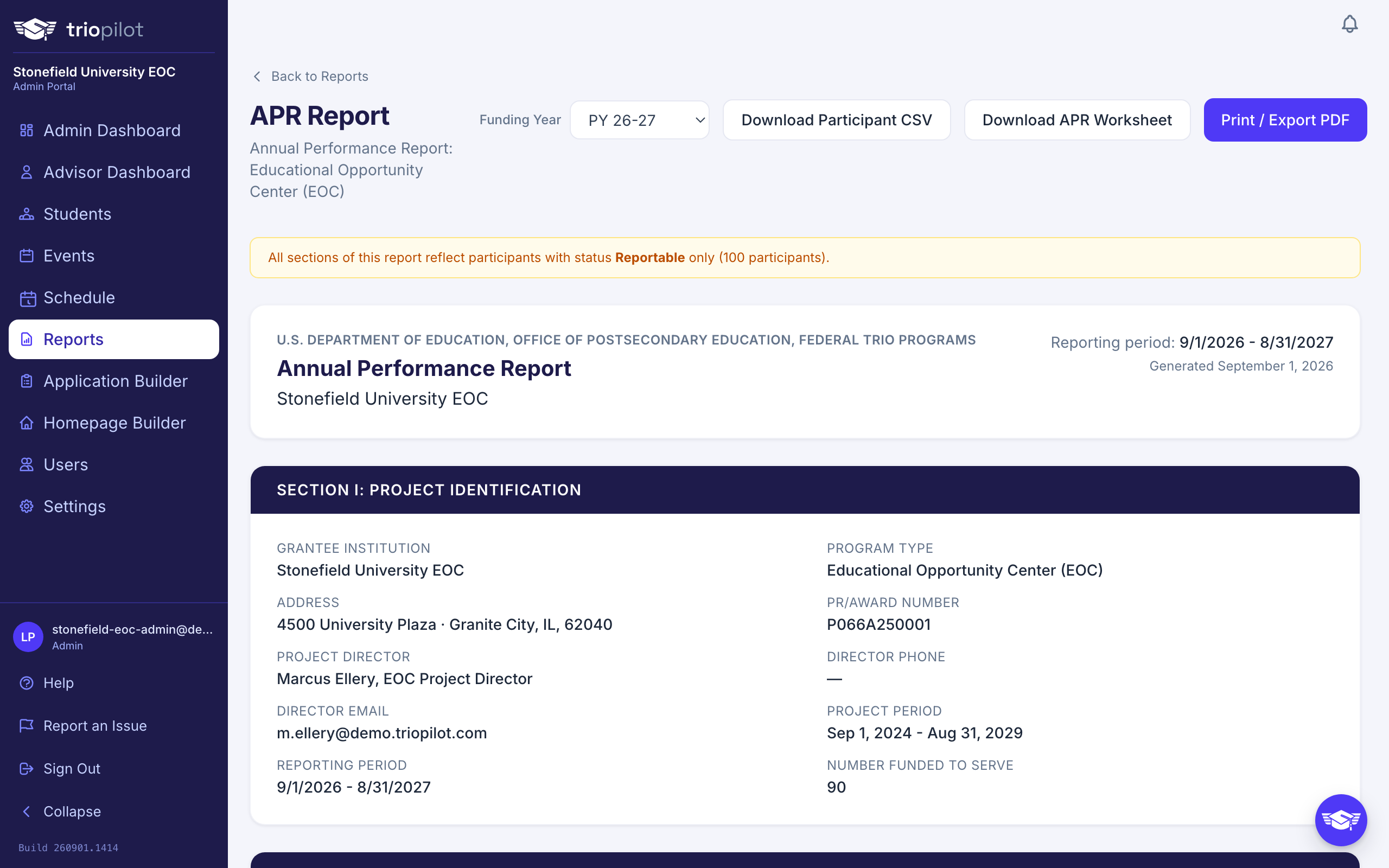
- Go to Reports, then open Annual Performance Report (APR).
- Pick the year in the Funding Year selector at the top. The options read as program years, for example PY 25-26, which covers September 1, 2025 through August 31, 2026. The selector also lists All Years, but the APR is always computed one program year at a time: pick it and you get the current program year's report.
- The report renders on screen: Section I project identification, Section II demographics, Section III educational status at first service, and Section IV performance objectives, calculated for your TRIO program.
Only students whose status is Reportable for that year are counted. Reportable is set automatically once every outcome that applies to a student has an answer, and you can also click the step on the student's profile to set it by hand. If a count looks low, check that first. See Understand student statuses.
Print or Save a PDF
Choose Print / Export PDF. It opens your browser's print dialog, where you can print or choose "Save as PDF". On-screen controls are hidden from the printed copy.
Export Participant Data
Need the underlying records? Choose Download Participant CSV. You get one row per Reportable participant for the year: identity, demographics, eligibility, educational status at entry, Section IV outcomes, and every profile field your program captures.
For EOC, TS, UB, UBMS, and McNair, each single-year objective also gets its own column reading Met, Not met, or blank when the student is not in that objective's pool, and those add up to the on-screen rate. SSS and VUB have no per-row objective columns, because their federal denominators depend on the funded number and institution level rather than on the individual student. Their rates live on the report itself.
The Funded Number and the 90 Percent Rule
Section I shows your Number Funded to Serve, set on the Reporting tab of Settings. Federal scoring holds back Prior Experience points from a project that served less than 90 percent of that number, and the report tells you plainly when that is the case. For Upward Bound, UBMS, and McNair the served count comes from each participant's Participant Status field, so if some participants have no status recorded yet, the report says the comparison cannot be made rather than guessing.
For Upward Bound and UBMS there is also an Efficiency Measure section, an estimate built from the Annual Grant Funding amount you can enter on the Reporting tab. The Department computes the official figure; the estimate is there so you can see roughly where you stand.
For SSS, the Required Services table in Section I.2 counts, for each of the seven required services, how many participants received it and how many were referred elsewhere. Record these on each participant's profile. If the section says the fields are not set up, use Repair missing fields on the Participants tab of Settings.
Case Numbers for Returning Participants
The Department assigns each participant a case number the first time you submit them, and every later APR must carry it exactly. Programs with a federal record file (Upward Bound, UBMS, SSS, McNair, and VUB) have an Import Case Numbers From The Match File card on the APR Report page. Have your staff download last year's data from your own APR portal (in Section II, the Download Excel File With Last Year's APR Data option), save it as a CSV file, and upload it here.
TRIOPilot shows a preview first: how many case numbers it can fill in, and every row it could not match. Nothing is written until you confirm. Only blank records are filled in; a record that already holds a different number is flagged for hand review, because a case number must never change once assigned. New participants are correctly left blank, and the Department assigns them a number at your next submission.
File With the Department
What you can download depends on your program:
- UB, UBMS, SSS, McNair, and VUB: choose Download Federal Upload File. This is the coded per-participant record file you upload to the federal APR portal, with every value translated to its federal code.
- EOC: choose Download APR Worksheet. EOC has no upload file. You key aggregate counts into the portal, and the worksheet lists every form cell with its computed value so you can transcribe them.
- TS: choose Download Enrollee List (Excel). This is the Section IV postsecondary enrollee spreadsheet the federal portal asks for, in the exact seven-column layout the instructions require.
Before you file, run the validation report: open the download link and add &validate=1 to the end of the web address. You get a CSV listing every value the file could not code, participant by participant, so you can fix the gaps before you file. It works for every program's record file and for the TS enrollee list.
Before You File
- Confirm the right participants are marked Reportable for the year.
- Log any outstanding contacts. Two contacts in the current program year move a student to Served, which is the step before Reportable.
- Fill the outcome gaps. The Needs Attention report lists exactly who is missing what, including outcomes marked yes with no supporting document.
- Sanity-check the totals against what you expect. The report is program-aware and uses the objectives and rules for your TRIO program, but you know your participants best.