Run the Needs Attention report
Find every student in your program with missing APR outcome data or missing evidence, across all advisors.
Before you can file a clean APR, every reportable student needs their outcome fields answered and their "yes" outcomes backed by a document. The Needs Attention report shows you exactly who still has gaps, in one sortable table covering your whole program. Find it under Reports, and pick the year with the Funding Year selector at the top right.
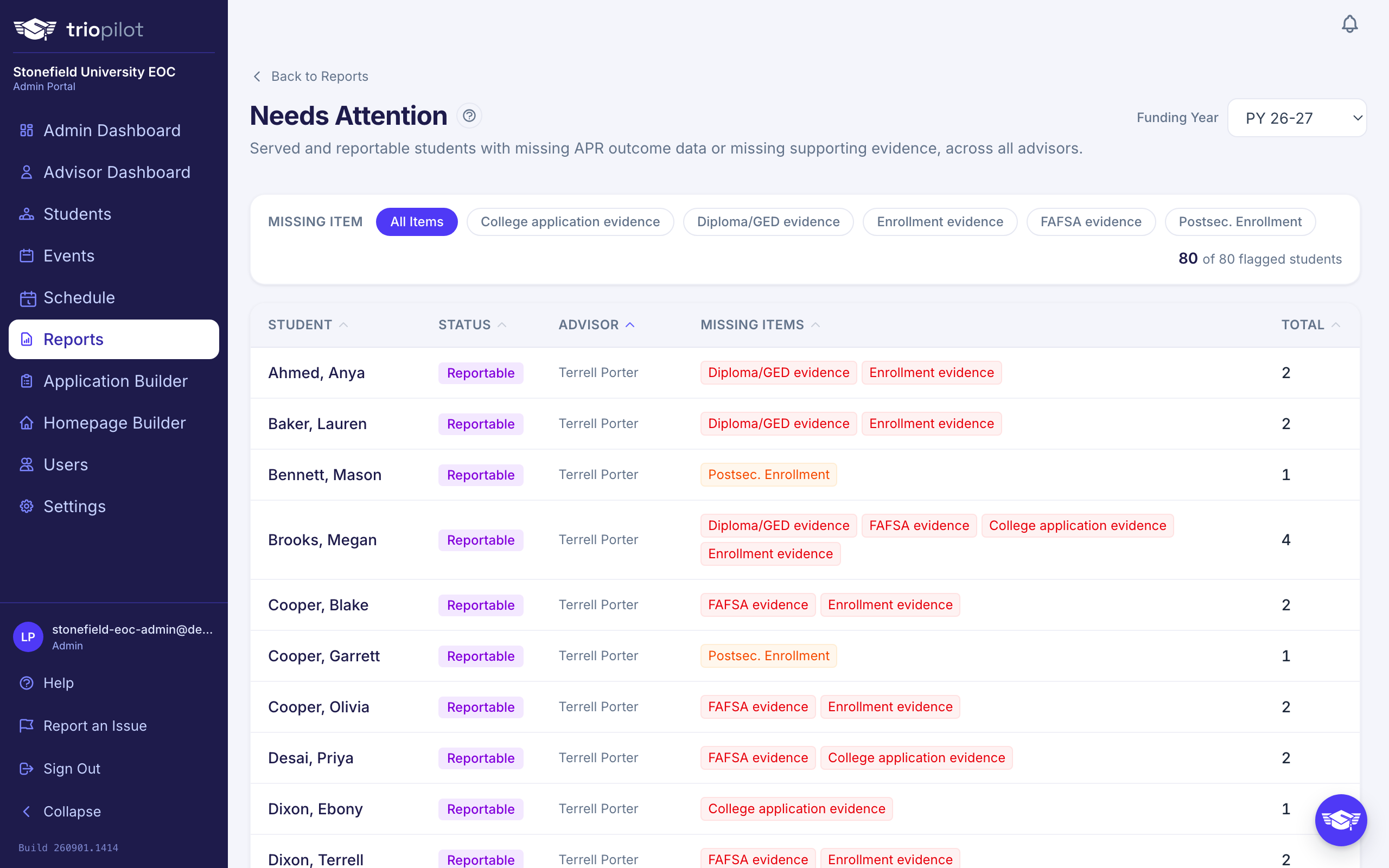
The report always covers one program year at a time. The selector's All Years choice is not supported here: pick it and you get the current program year back.
What Counts as Needing Attention
The report checks every student whose status is Served or Reportable in the selected program year, and flags two kinds of gaps:
- Missing outcome fields (orange). Based on the student's educational status at entry, only the outcomes that apply to them are checked: Diploma / GED, FAFSA, Postsec. Application, Postsec. Enrollment, and Institution Type (checked only when enrollment is answered yes). A field is missing only if it has never been answered. "No" and "Unknown" both count as answers, so students you have documented honestly are not flagged.
- Missing evidence (red). An outcome is answered yes, but no document on the student's record is tagged as supporting that outcome. The red chips read Diploma/GED evidence, FAFSA evidence, College application evidence, and Enrollment evidence. See Upload and download documents for how tagging works: when you upload a file, set the objective it supports.
A student appears if they have at least one gap. Two cases produce no orange chips at all, which is worth knowing before you treat an empty report as good news:
- The student's educational status at entry maps to no applicable outcomes, for example someone who was already a postsecondary student.
- The student has no educational status at entry recorded. With nothing to check against, no outcome field is required of them. They can still pick up a red evidence chip, but the orange check skips them entirely, so fill in that field first.
This check reads the EOC Section IV outcome fields. If your program is Talent Search, Upward Bound, SSS, McNair, or VUB, your students' outcomes are captured in their own APR Outcomes panel, which this report does not read, so it stays empty for you. Use Run your APR for those programs.
Read the Report
Each row is one student: their name (linked to their profile), status, advisor, the specific missing items as orange and red chips, and a total. The table opens sorted by Advisor, with unassigned students last, so you can hand each advisor their share.
- Sort by clicking any column header. Click again to reverse the direction.
- Filter with the Missing Item chips above the table. Pick one item to see only the students missing that item; All Items clears the filter. The counter on the right shows how many of your flagged students match.
- Students with no assigned advisor show as *Unassigned*, which is often the first thing worth fixing.
Export to CSV
The Download CSV button at the bottom of the table exports what you are looking at: the current filter and sort order carry into the file. Handy for handing an advisor their share of the cleanup, or for a working session with your team.
How It Relates to the Advisor Dashboard
Advisors see the same check on their dashboard as the Needs Attention card, scoped to the students assigned to them. Both surfaces run the identical criteria, so a student fixed in one drops off the other. One difference to expect: the advisor card is always the current program year, while this report follows whichever year you select. Assistants do not see the card at all.
Related: The APR Outcomes Audit
The Reports page also has an APR Outcomes Audit, and the two overlap on purpose:
- APR Outcomes Audit checks for missing outcome fields only, and it also includes Active students, so it is the wider sweep. Use it mid-year to catch data gaps early, before students reach Served. It can filter by status and exports to CSV or PDF.
- Needs Attention is the stricter pre-filing check: Served and Reportable students only, and it flags missing evidence as well as missing fields. Use it when you are closing out the year and getting ready to file.
Clearing a Flag
- Orange chip: open the student's profile and answer the outcome field. Any documented answer clears it, including "No" and "Unknown".
- Red chip: upload the supporting document to the student's profile and set its objective. Tagging a document also answers that outcome as yes, so one tagged upload can clear an orange and a red chip together. It always writes the current program year, so fixing an earlier year still means editing that year's outcome fields on the profile.
Answering all four outcome fields promotes the student to Reportable automatically; see Understand student statuses. Institution Type is not part of that promotion, so a Reportable student can still show an Institution Type chip here.
When the report shows All caught up, your Served and Reportable students have complete outcome data for the year, and you are in good shape to run your APR.