Roll students into a new program year
Carry participants forward to the next program year, safely.
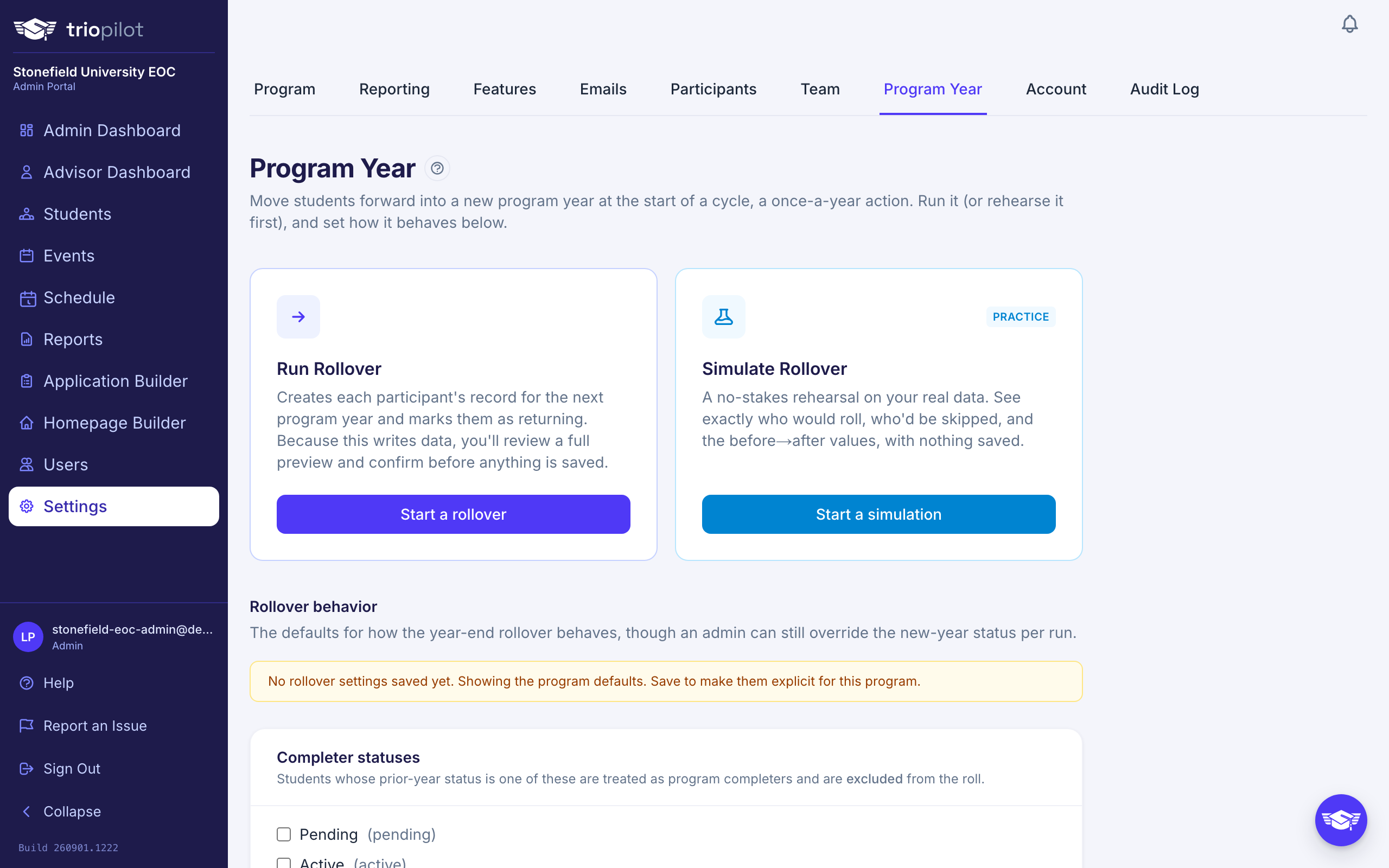
At the start of a new program year, rollover carries your continuing participants forward so you don't re-enter them. It copies the right information into the new year and resets what should start fresh. Rollover is a once-a-year action, so it lives in Settings → Program Year. It always moves the current program year into the next one, so there are no years to pick.
Two Separate Tools
Rollover gives you two distinct things, and they are not steps of one process:
- Simulate Rollover: a no-stakes rehearsal. It shows you exactly what would happen (who rolls forward, what carries over, what resets) and saves nothing. Run this first, as many times as you like.
- Run Rollover: the real thing. It creates each participant's record for the next program year.
Practice With a Simulation
- Go to Settings → Program Year and choose Start a simulation.
- Pick the New-year status rolled students should start the year with: Pending, Active, or Served. Or pick No Change: Keep Each Student's Current Status if your program does not reset statuses at rollover, and each student carries their own status into the new year.
- Adjust Field Actions if you like. That card sits below the setup card, with one row per built-in per-year field: choose Carry forward or Reset. Increment +1 appears only on the numeric fields, grade level and age at first service. Choices here apply to this run only.
- Choose Run simulation and review the plan: how many would roll and how many are skipped (with reasons), anything flagged for review, a per-field action list, and a before and after sample of students.
The rehearsal always covers every eligible student. Nothing is saved, so simulate freely until the plan looks right.
Run the Real Rollover
- From Settings → Program Year, choose Start a rollover.
- Pick the New-year status (including the No Change choice, which keeps each student's current status), and under Who rolls choose all eligible students or one enrollment cohort (students who share a first year of enrollment).
- Adjust Field Actions further down the page if needed, then choose Preview rollover.
- Review the full plan, just like a simulation.
- Type the target year shown on the Confirm card, then choose Commit rollover. You can't commit until what you type matches that year.
The setup page also offers an optional APR Settings for the New Year section. Expand it to enter the new year's grant numbers (Number Funded to Serve, per-objective targets, and for EOC the postsecondary enrollment option), pre-filled from the current year. If you skip it, the new year simply inherits the latest numbers you entered, and you can set them any time on Settings → Reporting under Grant Numbers by Program Year. If saving them fails after the rollover commits, the rollover itself is unaffected and the page tells you to enter them in Settings.
Everyone who rolls also picks up a Continuing pill next to their name, so you can tell at a glance who came forward from last year.
Rollover is safe to re-run. Students who already have a record for the new year are skipped, so it won't create duplicates.
Set the Rollover Behavior
The Rollover behavior section at the bottom of Settings → Program Year holds two defaults:
- Completer statuses: students whose prior-year status is one of these are treated as program completers and are excluded from the roll.
- Default new-year status: the status a rolled student starts the new year with. It pre-fills both flows, and you can still change it for any single run. Choose No Change: Keep Each Student's Current Status if your program does not reset statuses at rollover.
Choose Save settings to apply them. Until you save, the program runs on the built-in defaults: students marked Reportable count as completers, and rolled students start as Pending. See Understand student statuses for what each status means.
Control What Carries Over
Each per-year field has a saved default that decides whether its value carries forward, starts blank, or increases by one each year. You set that per field in Settings → Participants, in the Profile Fields section, under How often it is answered.
Open Built-in Fields there and each row offers A value each year, carried forward from last year or A value each year, starting blank. A number each year, going up by 1 is offered only on the fields TRIOPilot counts, which is why Age at First Service has it and the rest do not. A few built-in fields, such as Low-Income and Assigned Advisor, can also hold One value, the same every year, so those rows offer that as well. Your own fields use the same picker, with all four choices. Grade level increments on its own and is not listed in Profile Fields; it stops at 12, and the plan flags anyone who would have gone past it.
The Field Actions list in the rollover flow overrides those defaults for one run without changing your saved settings. It covers the built-in per-year fields; your custom per-year fields still roll, using their saved behavior. See Customize student profiles.
Tip
Always simulate first. It's the cheapest way to catch a surprise before it becomes real data.