Read the Admin Dashboard
What each number on the admin dashboard counts, and how to open the students behind it.
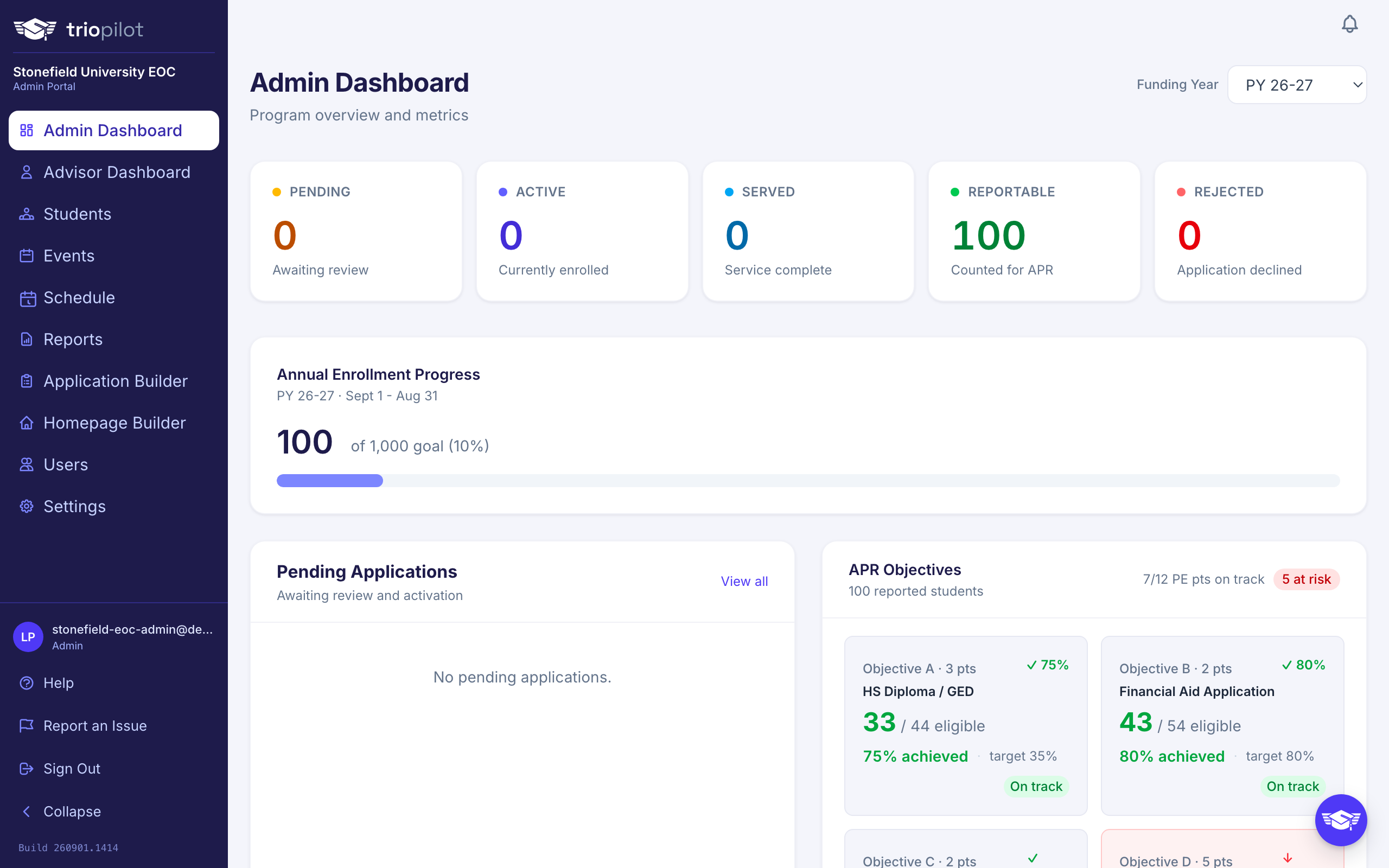
The Admin Dashboard is the page you land on when you sign in as an admin. It shows your program for one program year at a time. Most numbers on it open the students they count, so you can go from "5 students have no status at entry" to the 5 names in one step.
Pick the Program Year
Choose a year in the Funding Year selector at the top of the page. A program year runs from September 1 to August 31, and the subtitle names the year you are viewing, for example PY 26-27 overview.
Every number that opens a list opens it on that same year. Every student's name on the dashboard opens their profile on that year too, so a dashboard showing PY 24-25 never sends you to this year's record.
Status Counts and Enrollment Progress
Each tile at the top counts the students with that status in the program year: Pending, Active, Served, Reportable, Rejected and Inactive. Select a tile to open the Students page on that status tab for the same year. The tab's count matches the tile. See Understand student statuses.
Annual Enrollment Progress counts your Reportable students. Select the number to open them. The goal and the percentage are a setting and a ratio, not a list of students, so they do not open anything.
Lists That Need Attention
- Pending Applications lists the newest 20 Pending students of the year. View all opens the Pending tab with the rest.
- Unassigned Students lists every Active, Served or Reportable student of the year with no assigned advisor. The alert at the top of the page says how many there are and jumps to the list. Open a profile to assign an advisor.
- Active But Not Served lists the year's Active students with no contact in the 30 days before today, whichever year you are viewing. Use the advisor filter to see one person's students.
Each name opens the student's profile on the year you are viewing.
APR Objectives (EOC)
The APR Objectives card counts Reportable participants only, exactly as the APR report does. The number under the card's title, for example 40 Reportable students in PY 26-27, opens those students on the Reportable tab.
Each objective shows how many participants met it out of how many are eligible, for example 12 / 40 eligible. Select it to open the objective's participant list, which shows every participant the objective counts, grouped by the federal line they are on (for example IV.A1, received a secondary school diploma). Each name shows the participant's status at entry and their Section III line, and opens their profile on that year. The links under the summary jump to each line.
The list can show more names than the eligible number. Objective A's pool, and Objective D's pool under Option 2, leave out deceased participants (IV.A5 and IV.D4). The list shows them in their own group, marked Not counted in the rate, and its summary names both numbers.
Under Option 1, Objective D's list shows only the participants who received a diploma this year (IV.A1), the Option 1 pool. Its groups are headed as part of a line, for example IV.A1 Participants on IV.D3, because the APR report's D lines also count participants who already had a diploma.
Objective D shows a rate, and opens a list, only when your Objective D option is recorded in Settings, on the Reporting tab. See Run your APR.
Demographics and Educational Status (EOC)
The Participant Demographics cards count Reportable participants only. The number in the heading opens all of them.
Each row in Section II: Eligibility & Demographics and Section III: Educational Status at Entry opens the Students page on the Reportable tab for the same year, with the Advanced filter already set to that row's conditions. The filter panel opens so you can see why each student is listed, and the Reportable tab's count matches the row.
For example, if Section III shows Not set with 5 students, select it. The Students page opens on the Reportable tab with one condition, Educational Status at Entry Is Empty, and lists those 5 students. Open each profile and record the status before you file. Pending and Inactive students with no status are not listed, because the dashboard does not count them.
Total eligible counts students who are low income or first generation, so its link sets Match ANY: the Students page lists anyone who meets at least one of the two conditions. See Find and filter students.
Postsecondary Placements (EOC)
The Section IV: Postsecondary Placements card counts the participants the APR report counts in Section IV.E. The number under its title opens the whole placements list, and each institution type card opens the list at its line.
Numbers That Do Not Open a List
Every number keeps counting the same way whether or not it opens a list. These do not open one:
- A count of 0 on the APR cards: there is nobody to list.
- Under 18, when some students have no Age at First Service and their status at entry is 9th to 12th grade or Other (under 18). The dashboard counts those students as under 18, but the Students page cannot filter on that combination, so a sentence under the card says how many there are. Record their ages and the row opens a list again.
- Numbers from a mapped custom field. If your program maps a custom field to an APR field (in Settings, on the Participants tab, under Profile Fields, where a field says "Feeds your APR as"), the dashboard uses that answer when the student's own field is empty, while the Students page filters the student's own field. A sentence under the card names the groups affected.
- A Section III row the filter cannot express, such as a status at entry stored as spaces with no visible text. The Not set row also does not open a list when a record stores the words "Not set" as its status at entry, or blank text instead of no value.
- Goals, percentages and PE points: they are not lists of students.
On a phone, a number that opens a list is underlined or has an arrow beside it. A number with neither does not open a list.
When a Count Looks Different
- The dashboard reads its numbers when the page loads. If someone changes a student's status after that, the Students page shows the change first. Reload the dashboard to update it.
- The Students page's other tabs show students the APR cards do not count, such as Pending and Inactive students. Compare a dashboard number with the tab its link opens.