What applicants see
A walkthrough of your public application form, so you can answer questions and help someone through it.
Applicants never sign in to fill out your form. They open a public web page, answer your questions, and submit. What comes back is a new student record waiting for you to review. This article walks through what they experience, so you can answer questions, share the right link, or sit beside someone and help them through it.
To change the questions themselves, see Build your application form.
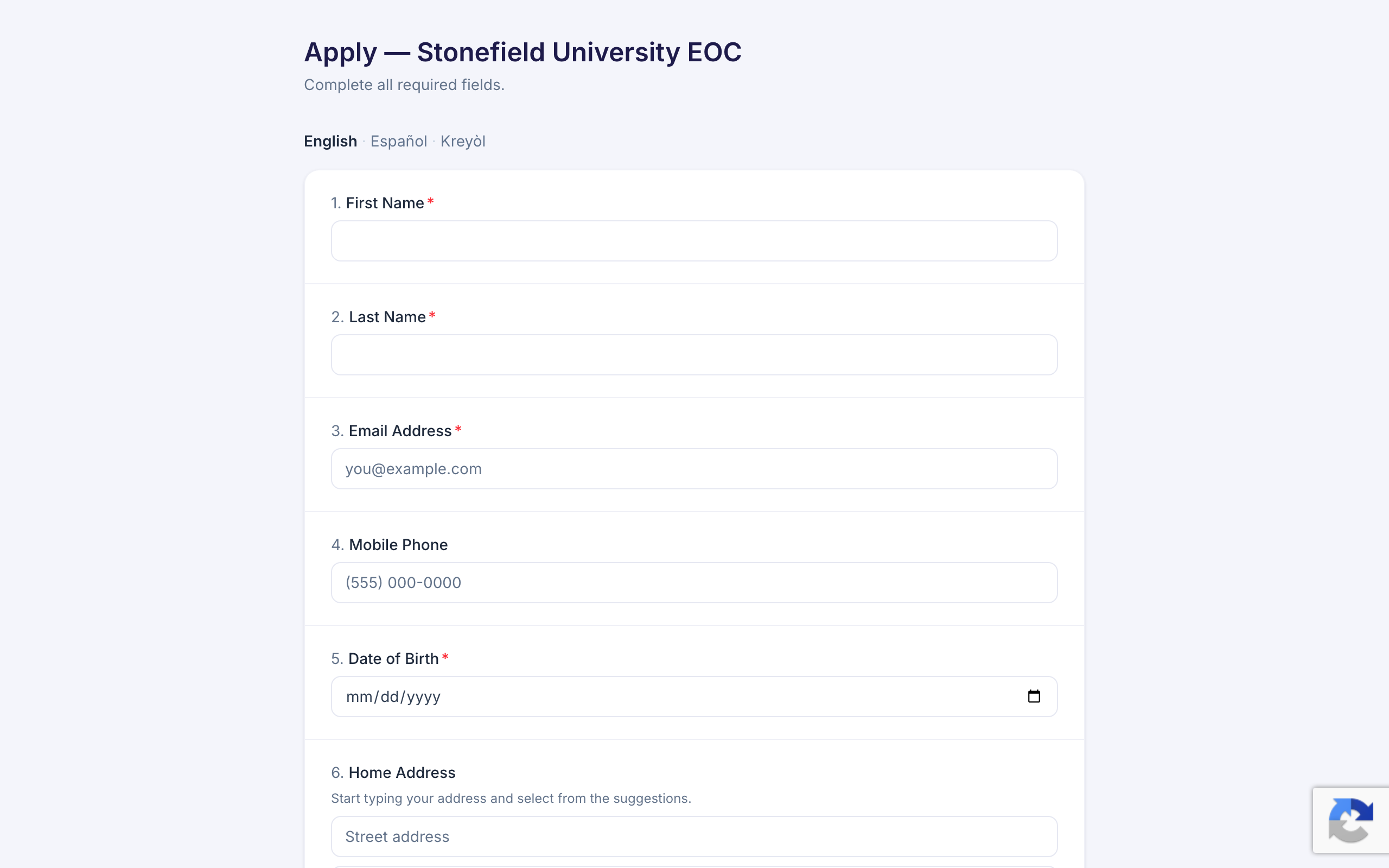
Where the Form Lives
Your application form has its own public web address, and both ways to share it sit on the Application Builder page:
- The Your live application bar at the top, with Copy and Open buttons.
- The Application QR Code card just below it. Copy the link, Download PNG, or Print a scannable sheet for flyers and tabling.
Share it however you reach students: email, a text, your program's homepage, or a printed code on a table.
What the Applicant Does
- Opens your link. There is no account to create and no password to remember.
- Answers the questions. Required ones are marked with a red asterisk, and the form will not submit until they are filled in.
- On an address question, types the street address and picks from the suggestions, which fills in city, state, and ZIP. Those boxes can also be typed in by hand.
- On a file question, attaches a photo or a PDF, up to 10 MB each.
- Signs, if your form includes a signature question, then chooses Submit Application.
A confirmation screen follows: the message you wrote in the builder, or "Application Submitted" with a short thank-you if you left it blank. TRIOPilot also emails a short receipt to the address they entered, in the language they filled the form out in, saying only that the application was received. Admins can edit that wording on the Emails tab in Settings; see Edit the emails TRIOPilot sends.
What comes next depends on the After Submission setting in the builder:
- Just show the confirmation screen. They read the message and that is the end of it.
- Send them to a web address. A ten-second countdown carries them to your page, with a Continue link to skip the wait.
- Invite them to book an appointment. An invitation appears just under your message, with a Choose a Time button. See below.
If You Invite Them to Book
With scheduling turned on and the builder set to invite booking, the applicant can go straight from submitting to your calendar:
- They choose Choose a Time on the confirmation screen.
- They pick the kind of appointment and how they want to meet. Steps with only one option are skipped, so a program with one appointment type and one format sends them straight to the calendar.
- They pick a day and a time from your advisors' open hours, and can add a note about what they want to talk about.
- They choose Confirm Appointment. The time is booked right then, not held pending review.
The booked screen gives them a link to change or cancel the appointment themselves, and a confirmation email with that same link goes to the address from their application. Someone who has just applied has no account, so for most people that link is how they do it online. Tell anyone you help through the form to save it. Nobody has to sign in for any of this, and the advisor who holds the appointment gets a notification when it is booked, moved, or cancelled.
Have them pick a time before they close the page. The invitation works in the tab they submitted from, and for about two hours. Open it in a new tab, or come back tomorrow, and the booking page no longer knows which application it belongs to.
If someone opens your booking page without applying first, they can still see the open times, but they are told to start an application before they can book. Anyone who returns to the invitation too late, or in a new tab, gets that same message. So if a student tells you the booking page will not let them in, that is usually why, and the quickest fix is to book the time for them yourself from their profile.
Booking lives behind a switch. With appointment scheduling off in Settings, on the Features tab, applicants simply stay on the confirmation screen and nothing links them to a dead page.
Other Languages
When your questions have translations, an English, Español, Kreyòl toggle appears just above the form, and the language an applicant picks is remembered on their device. There is nothing to set up: TRIOPilot regenerates the translations every time you save in the builder, so they keep up with your wording.
What Happens on Your Side
Every submission creates its own student record with the status Pending, waiting for a human. Nobody is enrolled automatically, and submitting creates no account for the applicant.
You will find the new record in the Pending Review card on the advisor dashboard, the Pending Applications card on the admin dashboard, and in the Students list. Everything after that is staff work: review, assign an advisor, set the status. See Understand student statuses.
The submitted form is also saved onto the record as a PDF, signature included, and anything the applicant attached lands in the student's documents.
Someone Applied Before
Returning applicants simply fill the form out again. Nothing stops them, nothing is overwritten, and they are never told they are already on file. If a new application looks like someone you already have, TRIOPilot flags it for staff rather than guessing. See Review possible duplicates.
Filling the Form for a Student
Walk-ins and phone intakes are common, so you can fill the form out on someone's behalf. Advisors and admins have a better way: the Add New Student button at the top of the Students page opens the same form inside TRIOPilot, skips the receipt email, and lands you on the new profile when you finish. See Add a student by hand. You can also simply open the public link and type their answers; it makes no difference whether you are signed in.
One thing matters: enter the student's own email address, never your own. It is how your program reaches them afterwards, and a matching email is one of the signals that flags a possible duplicate for review. Put your own address on ten applications and all ten will flag each other.
If an Applicant Gets Stuck
Point them to your program. This help center is written for staff, so there is nothing here for an applicant to read and nobody else for them to ask.