Add a student by hand
Enter a student from a paper application. TRIOPilot creates the record and files their answers, just as if they had applied online.
Not every student applies online. Someone fills out a paper form at a school visit, or an advisor takes an application over the phone. Add a Student lets you key that application in yourself, and TRIOPilot treats the result exactly like an online submission: it creates the student record, files every answer, and saves a PDF of the application to their documents.
Where to find it
Open the Students page. If your role can add students, an Add New Student button sits at the top right, next to the page title. Click it to open the form.
Advisors and admins can add students. Assistants and read-only roles do not see the button.
Filling out the form
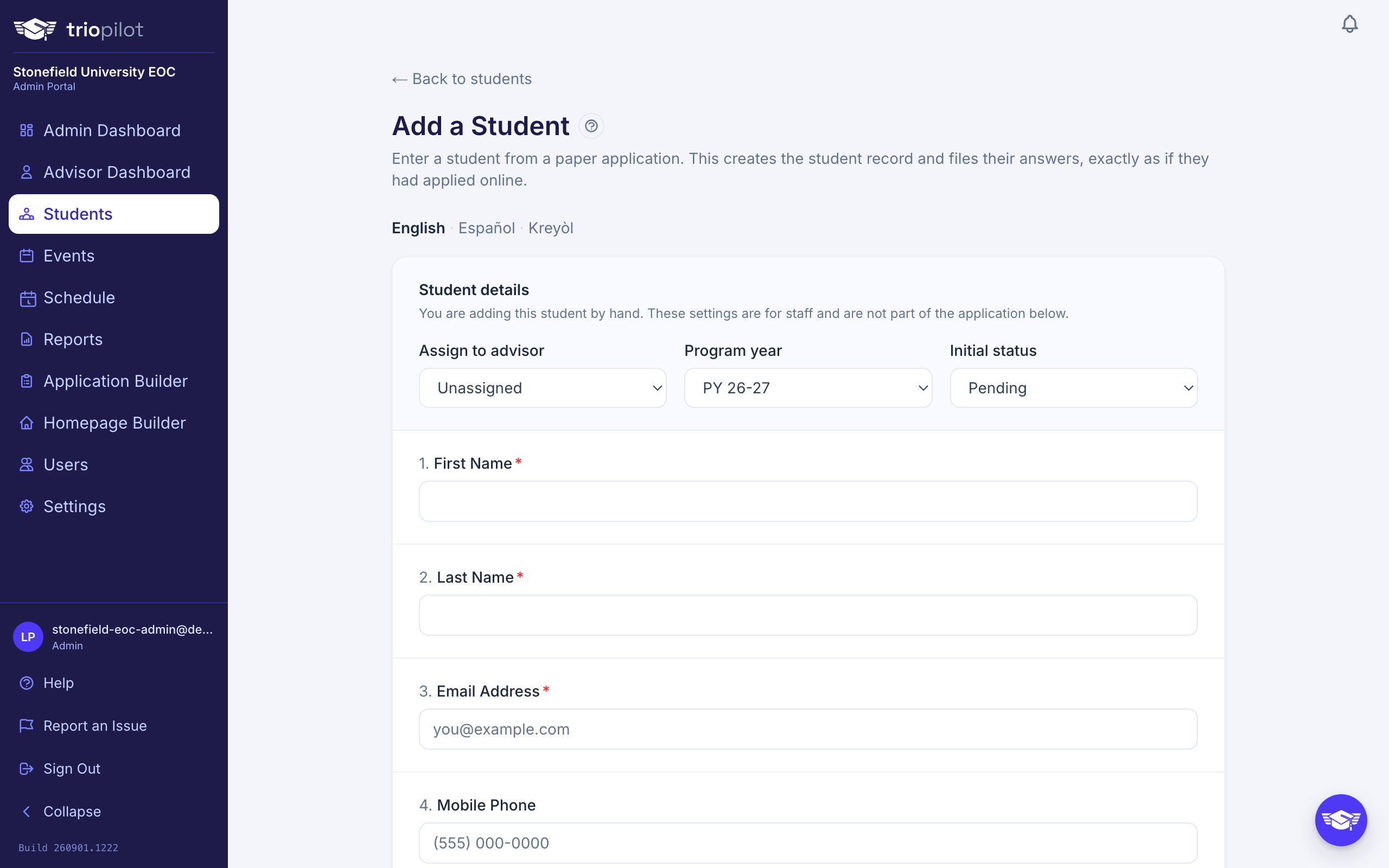
The form is your program's own application, the same one applicants see online. Answer the questions from the paper form in front of you.
At the top, a Student details panel holds three settings that are for staff only and are not part of the application:
- Assign to advisor. Who owns this student's caseload. If you are an advisor, this defaults to you. Choose Unassigned to leave it for later.
- Program year. Which year this application belongs to. It defaults to the current program year. Change it only if you are entering a form from an earlier year.
- Initial status. Where the student starts: Pending, Active, Served, or Reportable. Most new students begin at Pending. See Understand student statuses.
Then work down the application itself. Required questions must be answered before you can save, the same rule that applies online. An email address is optional here, because a paper form may not have one (though if your form makes its email question required, that still applies). Signature questions do not appear, since you cannot sign on the student's behalf; the scanned paper form with their real signature can be attached to a file upload question, or added to their documents afterward.
When everything is entered, click Add Student. Cancel takes you back to the students list without saving.
Possible duplicates
TRIOPilot never merges records automatically. If the name and date of birth, or the email, match a student you already have, the new record is created and flagged as a possible duplicate so you can review the two side by side and merge them if they are the same person. Entering someone who is already in the system does not overwrite the existing record. See Update a student's record for how the review works.
What happens after you save
You land on the new student's profile. Their answers are filed under the program year you chose, a PDF of the application is saved to their Documents, and the record behaves like any other from that point on: you can log contacts, edit fields, and it counts toward your reporting.
No email is sent to the student when you add them by hand.