Edit the emails TRIOPilot sends
Customize the five automatic emails with rich text, choose who gets the new application alert; Spanish and Creole translate automatically.
TRIOPilot sends five emails automatically, and Settings, on the Emails tab, is where you control their wording:
- An application receipt to the applicant, the moment they submit.
- A new application alert to the staff addresses you list, the same moment.
- A notice to an advisor when a student is assigned to them.
- A notice to an advisor when a student books an appointment with them online.
- Confirmations to the student when they book, move, or cancel an appointment themselves.
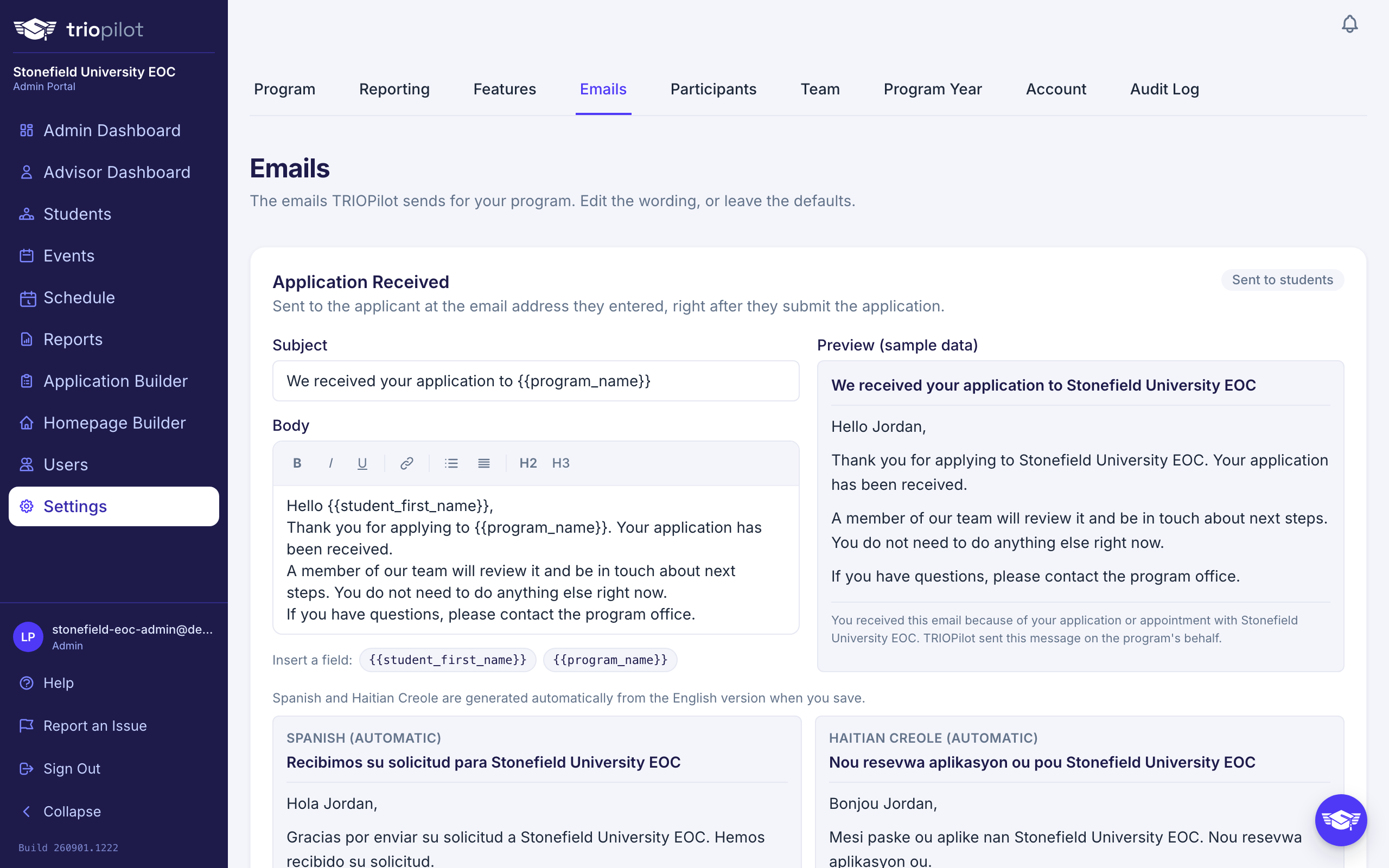
Each card shows the current wording with a live preview using sample data.
Formatting
The body is a rich text editor. Use the toolbar for bold, italic, underline, links, bullet or numbered lists, and headings. The email goes out as formatted HTML, with a plain text version underneath for any mail app that needs it.
Languages
You edit the English version only. When you save, TRIOPilot translates the student emails into Spanish and Haitian Creole automatically and shows each one as a read-only preview beneath the editor. The application receipt arrives in the language the applicant filled the form in; appointment confirmations to students are sent in English. Advisor and staff emails are English only. If you change the English wording later, save again to refresh the translations.
Merge Fields
Click a field chip such as {{student_first_name}} to drop it into the body at your cursor. It is replaced with the real value at send time. You cannot save a field the email does not support; the editor tells you which field it does not recognize.
Saving and Resetting
Save applies immediately to future emails; nothing already sent changes. Saving the English version also regenerates the Spanish and Haitian Creole versions. Reset To Default returns that email to the standard wording in every language. A short footer naming your program and why the email arrived is added to every message automatically and cannot be edited.
Turn an Email Off
Not every program wants every email. At the top of the Emails tab, the Notifications card lists the five emails TRIOPilot can send, each with who receives it: the application receipt to the applicant, the new application alert to the staff addresses you list, the assignment notice to the advisor, the booking notice to the advisor, and the booking, change, and cancellation confirmations to the student. Untick one and it is simply not sent; everything else about that event still happens. Tick it again to resume. Every switch is on unless you turn it off, and each change is saved immediately and recorded in the audit log. The two appointment emails only apply when scheduling is on; while it is off they appear grayed out, since nothing can trigger them.
Who Gets The New Application Alert
The New Application Alert For Staff email goes to a list of addresses you enter yourself, under Send To on the Notifications card. Type one or more email addresses, separated by commas or one per line, and press Save Recipients. Anyone can be on the list, including a shared intake inbox or a director who does not sign in to TRIOPilot; the addresses do not need accounts. The card tells you if something you typed is not an email address, and nothing saves until it is fixed. Until at least one address is on the list, this email is not sent, and the card says so.
The alert names the applicant, when the application arrived in your program's time zone, and links straight to the new student's profile. It is sent for every application, whether the applicant submitted it online or a staff member entered it with Add New Student. Staff who sign in also see every new application in the bell at the top of the page; that in-app alert is separate from this email and goes to every staff member who can edit students.
Good to Know
- These messages are only sent because the recipient did something themselves (applied, was assigned, booked), so there is no unsubscribe list to manage.
- Appointment times are always written in your program's timezone.
- A change made by staff to a student's appointment does not email the student; the change screens say so, and it is your staff's call to tell them.
- An email that fails to send never blocks the application or booking that triggered it.