Record an event
Log a workshop or group session and credit every attendee at once.
When you run a workshop, college visit, or group session, record it as an event. One event logs a contact for every attendee, so you never enter them one at a time.
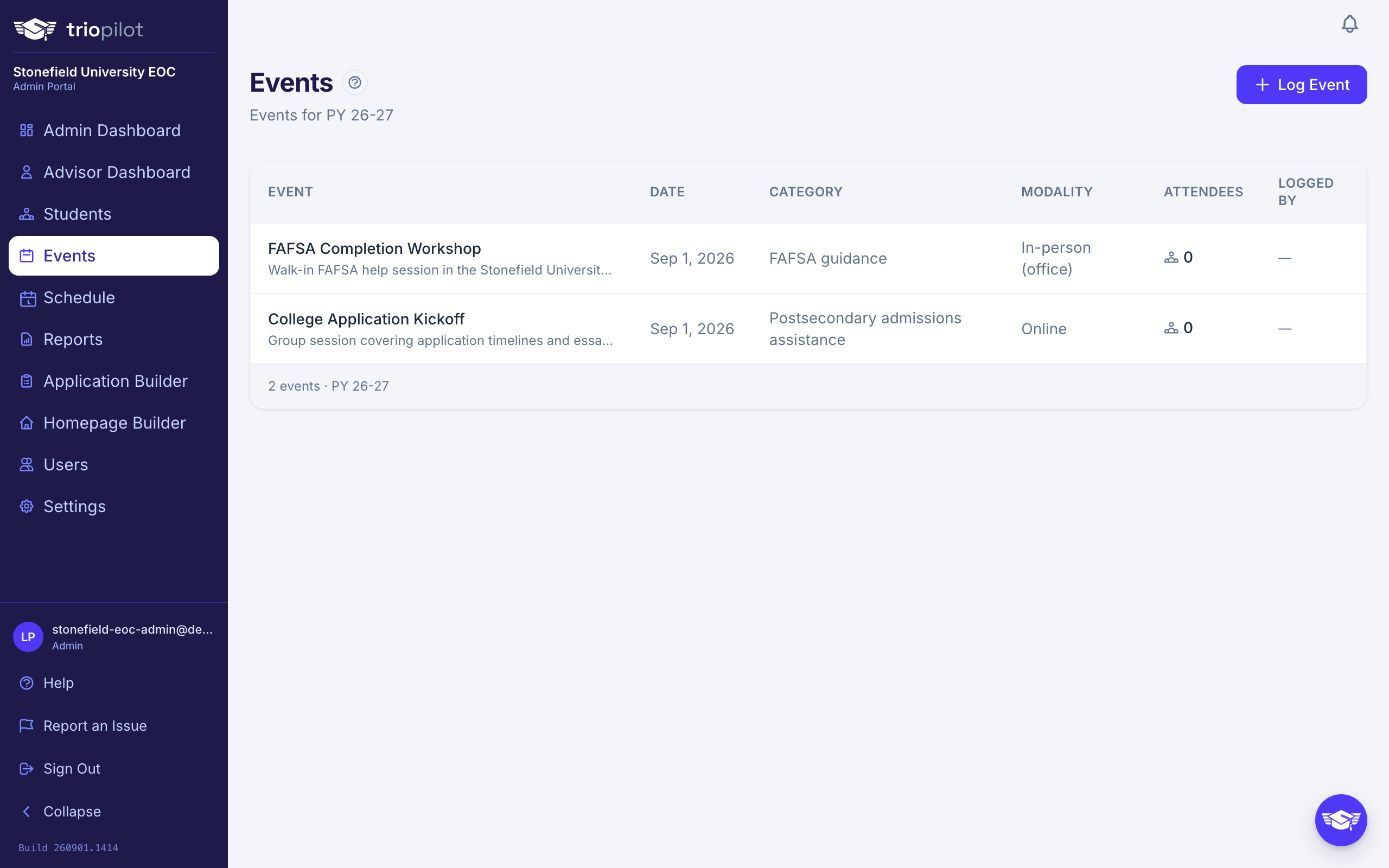
Create an Event
- Go to Events in the sidebar and choose Log Event. (You can also start from the student list: select students, then choose Log Event in the bulk action bar, and they arrive pre-added as attendees.)
- Fill in the Event Name, check every Contact Type that applies (one contact record is saved per type per attendee, just like logging a contact), choose a Modality, and confirm the Date. Notes are optional. Everything except Notes is required.
- Add your attendees: search or filter the student table, then check the students who came. The checkbox in the table header selects everyone currently visible, and your picks are kept when you change the search, so you can gather people across several searches.
- Save. The button reads Save Event + Log 12 Contacts, with your real count, so you can double-check it before you commit.
Admins see one extra field, Hosted by. If you are keying in an event that a different advisor actually ran, pick them there: every contact the event logs is attributed to the host, so it shows on their caseload activity and under their name in each student's feed. The Events page lists the host with a note of who logged it, and the audit log keeps your name as the person who entered it. Advisors do not see this field; their events are always their own.
If you don't see a Log Event button, your role isn't allowed to log contacts. Ask your admin.
What Happens When You Save
Saving an event does several things in one move:
- Creates the event record, listed on the Events page with its date, category, modality, attendee count, and who hosted it (and, when an admin logged it for someone else, who entered it).
- Logs a contact for every attendee for each contact type you checked, using the event's modality, date, and notes. Two types and ten attendees means twenty contact records.
- Moves attendees who reach two or more contacts in the current program year to served. See Understand student statuses.
On each attendee's profile the result appears in the activity feed as an ordinary logged contact. The event's notes carry over, but the event name does not, so put the event name in the Notes if you want staff to see it there.
Tips
- The event's date sets which program year the contacts count toward, so pick it carefully. The Events page lists only the current program year, so a backdated event lands its contacts in the earlier year and drops off that list.
- An event can't be edited or deleted after you save it. Check the count on the save button first.
- Contact types and modalities come from the same lists you see when you log a contact. You can check several contact types, but an event records exactly one modality. Your admin manages both in Settings, on the Participants tab.
- Need to credit the same group for a different topic on a different day? Record a second event. Each event logs its own contacts per attendee.